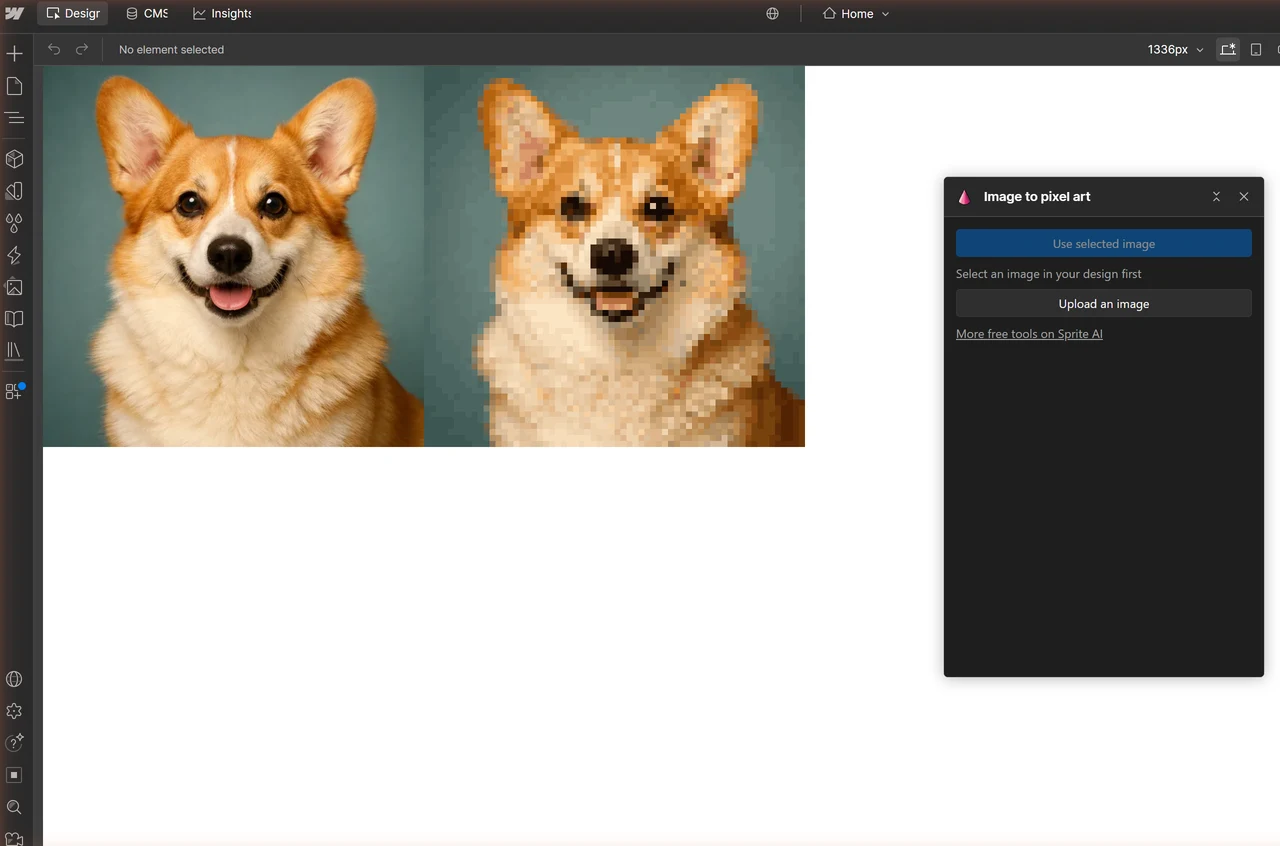
The Image to pixel art app turns any picture on your Webflow site into pixel art without leaving the Designer. It's free, it needs no account, and it runs the same converter as the Image to pixel art converter on Sprite AI (sprite-ai.art). Select an image, press one button, pick a size, insert. That's the whole job.
How to install Image to pixel art in Webflow
You install Image to pixel art once per site, from the Apps panel in the Webflow Designer.
- Open your site in the Webflow Designer.
- Click the Apps icon in the left toolbar.
- Search for Image to pixel art and install it.
- Pick the site it may work on, then approve.
From then on the app sits under Connected in the Apps panel. It's listed in the Webflow Marketplace too, if you'd rather install it from there.
How to turn a Webflow image into pixel art
Select an image element, press Use selected image, then press Insert.
- Open Image to pixel art from the Apps panel and press Launch App.
- Click an image element on the canvas, or pick it in the Navigator.
- Press Use selected image. The pixel art shows in the panel at 128 px and 16 colors.
- Change Output size and Color count. The preview redraws as you go.
- Press Insert.
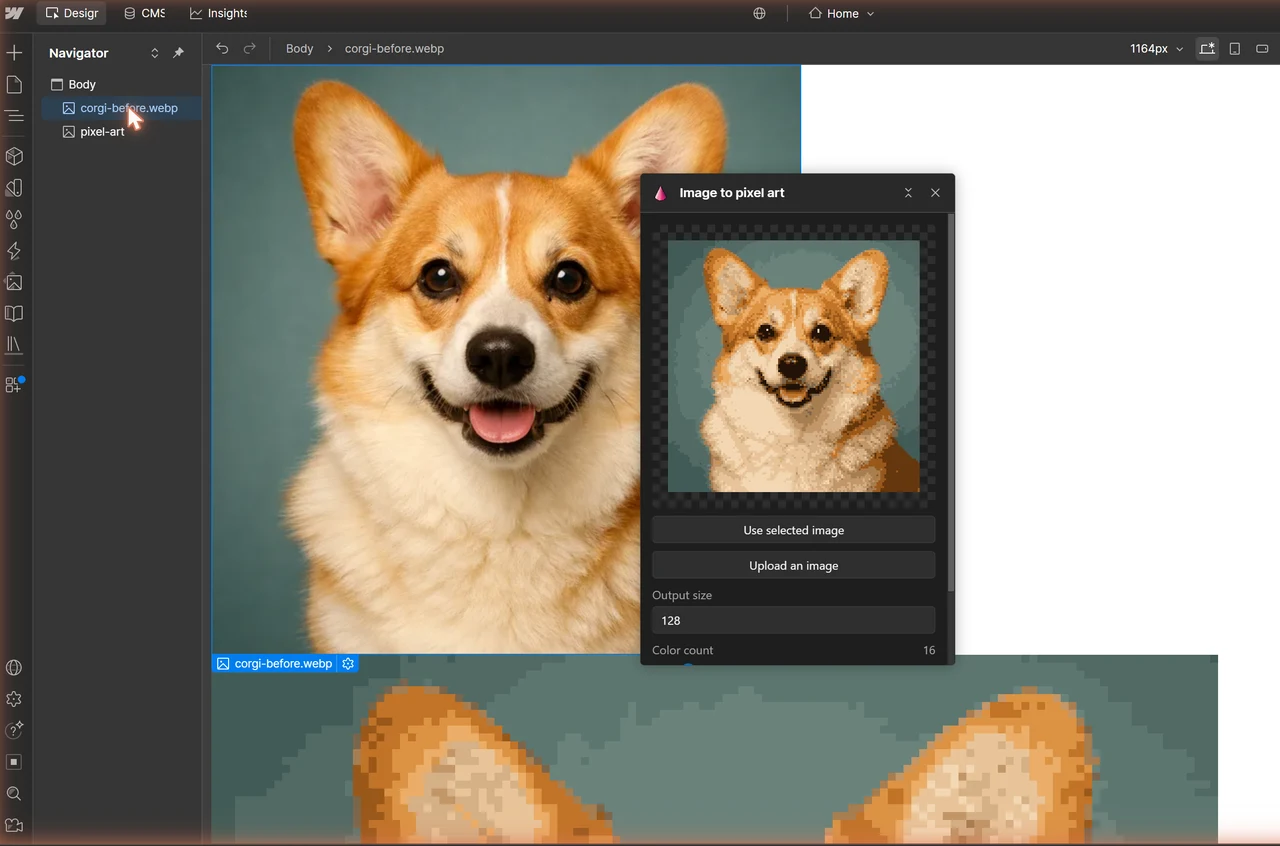
The pixel art lands as a new image right after your original, and the panel says Added to your design. Your original isn't touched. The PNG also goes into your site's Assets panel, so you can drop it anywhere else on the site later.
Output size and color count in the Webflow app
Output size sets the pixel grid, from 8 to 256 px, and color count sets the palette, from 4 to 128 colors.
The defaults, 128 px and 16 colors, keep a photo recognizable with a clear pixel finish. Want it chunkier? Drop the size first. 64 px is the sweet spot for avatars and hero art, 32 px reads as an icon, and under 24 px a face turns into a suggestion.
Color count pulls the other way. Eight colors gives you a Game Boy era look. Sixteen keeps skin and sky natural, and 32 or more is only worth it when the source has gradients you can't lose. The palette snaps hard, with no dithering, so flat areas stay flat.
The Image to pixel art converter page shows the same corgi at every size and color count, if you'd like to compare before you commit.
Why the pixel art stays sharp in Webflow
Every image the app inserts gets a class named pixel-art that sets image-rendering to pixelated, so Webflow scales it without blurring.
Browsers smooth an image when they stretch it. Fine for photos. Terrible for pixel art, which turns into a soft smear the moment you set its width to 100%. The usual fix on the Webflow forum is custom code in your site's head. The app skips all that. It creates the pixel-art class once per site, and every image it inserts uses it. MDN's page on crisp pixel art explains the CSS behind it.
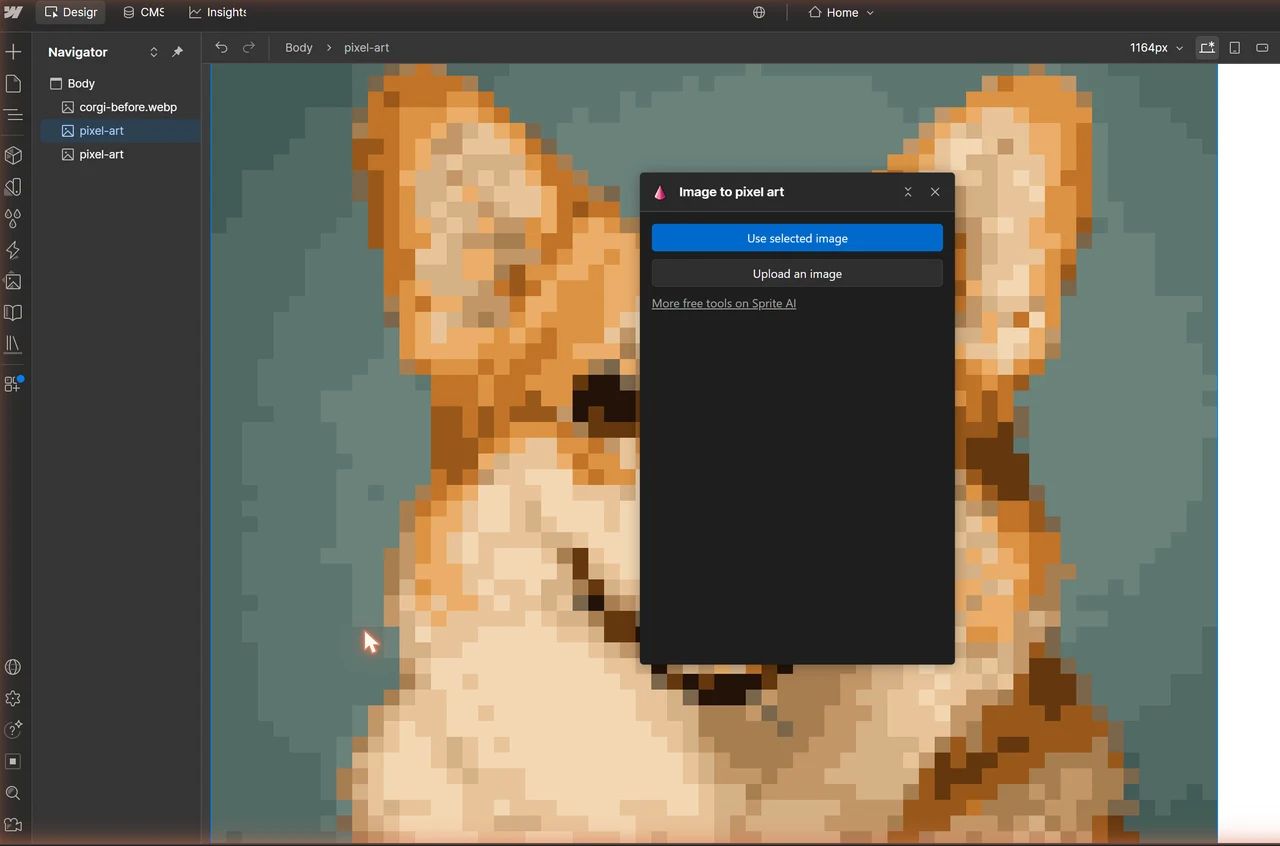
Got pixel art on the site that you made somewhere else? Select it, open the Style panel and add the pixel-art class. Same square pixels, no code.
Start from a picture on your computer
Press Upload an image to convert a file from your computer instead of a picture already on the page.
Pick an image file up to 10 MB, such as a PNG, JPG or WebP. Then select the element the pixel art should follow and press Insert. It lands right after that element, and the PNG joins your Assets panel like any other image.
When a button in the app stays grey
Use selected image and Insert only light up when the Designer lets the app do their job.
- Use selected image is grey. The selection isn't an Image element. A div with a background image doesn't count, so select the image itself.
- Insert is grey. The Designer doesn't let you design or add assets right now, for example in a role limited to editing content. Hover the button to see the reason, or ask the site's owner for a role that can design.
- The panel says the image is over 10 MB. Use a smaller version of the picture. Pixel art never needs the full-size file anyway.
FAQs
Is the Image to pixel art app for Webflow free?
Yes. The app is free, with no account and no limit on how many images you convert.
Does Image to pixel art send my images anywhere?
No. The conversion runs in your browser, and the pixel art goes straight into your Webflow site. Sprite AI never receives your picture.
Will the pixel art blur on retina screens or mobile?
No. The pixel-art class keeps the pixels square at any width and on any screen density.
Can I make pixel art from scratch for a Webflow site?
Yes. The AI sprite generator on Sprite AI makes pixel art from a text prompt, from 32x32 up to 400x400, and the Pixel editor lets you draw it pixel by pixel. Upload the PNG to Webflow, then add the pixel-art class the app created.
Related posts
 Blog
BlogTerraria pixel art generator: make sprites & in-game art
Create Terraria-style pixel art with AI or by hand. Generate sprites, convert images to tile art, and build pixel art in-game. Free tools inside.
 Blog
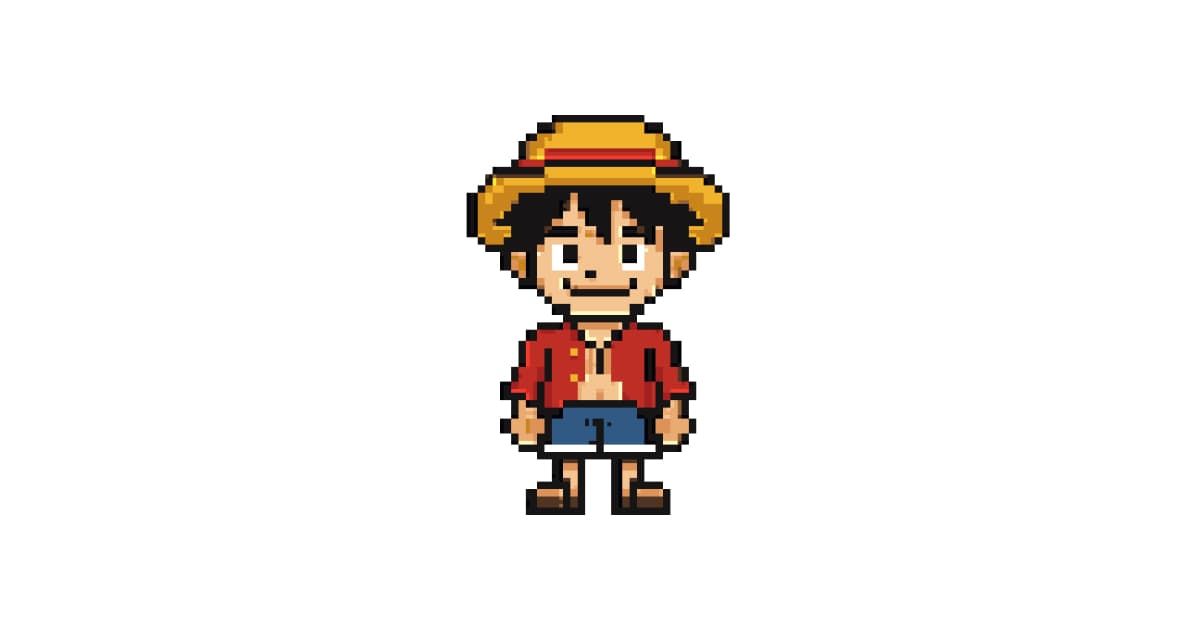
BlogAnime pixel art: the JRPG tradition that never left
How anime pixel art evolved from SNES JRPGs to modern indie games. Techniques for eyes, hair, poses, and palettes at small scales.
 Blog
BlogHow to make a pixel art game in 6 steps
A six-step roadmap for your first pixel art game. How small to start, which engine to pick, how to make the sprites, and how to finish.