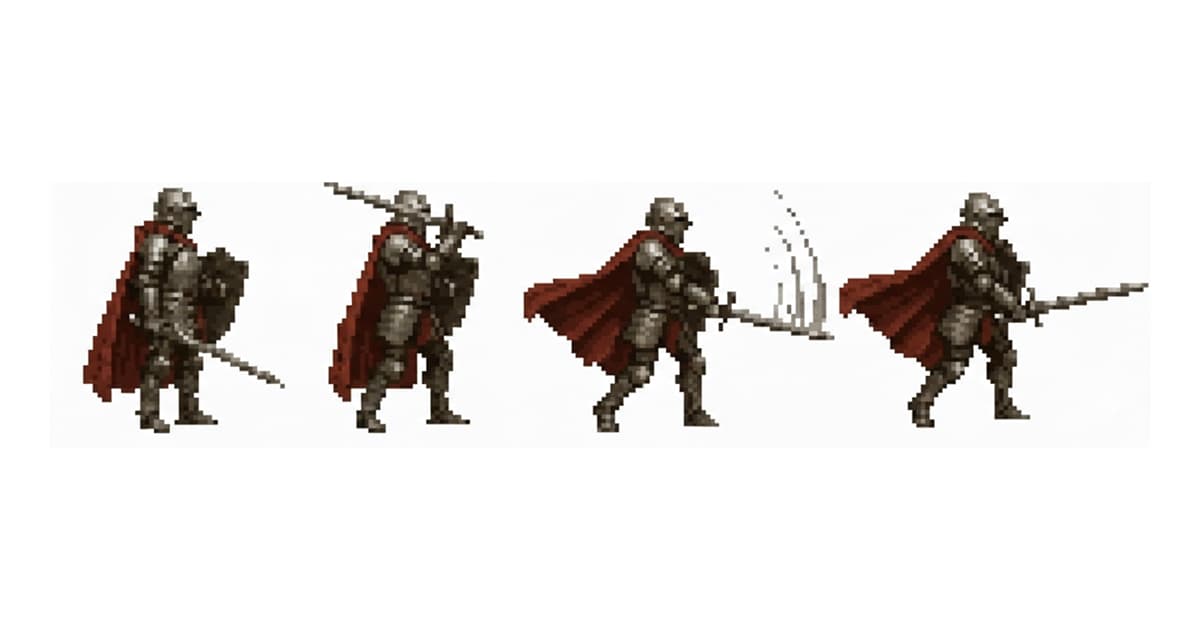
Pixel art animation lives or dies on timing. Not frame count. Not technique. Timing.
Watch Madeline run in Celeste. That's four frames, looped forever. Four. And it's one of the most iconic movement animations in indie gaming. The people who made it didn't draw more frames than that because they didn't need to. The timing carried the weight. That's the secret nobody tells you upfront: pixel art animation isn't about drawing more, it's about picking the right frames and letting them breathe.
Frame counts real games actually use
Before touching any tool, burn this into your head: shipped pixel art games use far fewer frames than beginners think they need.
Here's the reference sheet.
- Celeste's Madeline run cycle: 4 frames
- Shovel Knight walk cycle: 6 frames
- Hollow Knight's Knight walk: 8 frames (it's a bigger sprite, more fidelity)
- Stardew Valley character walk: 4 frames per direction
- Most 16-bit RPG idles: 2-4 frames with long hold times
A walk cycle, the bread-and-butter of pixel art animation, breaks down to four poses. That's it. Contact pose (foot hitting the ground), passing pose (body over the back leg), contact pose on the opposite foot, passing pose again. Loop. Four frames and your character walks. Add two in-betweens if you want smoother motion, but the core is four. Slynyrd's walk-cycle breakdown has the clearest visual explanation of this if you want to go deeper, and Final Boss Blues's walk cycle series is still one of the best resources for pixel-specific timing quirks.
Idles are even cheaper. Most idle loops in shipped games use 2 frames with a hold time of 200-400ms on each. Breathing. A tiny bob. A blink every few seconds on frame three. Anything more and you're paying yourself to animate something nobody watches closely.
Don't believe the "more frames = better" trap. In vector animation, sure. In pixel art, every extra frame is another set of hand-placed pixels you have to keep consistent. That's where animations start looking janky, not from too few frames but from inconsistency between them.
If you want a proper deep-dive on how many frames each animation type needs, we wrote one: sprite animation frames: how many do you actually need?.
The tools you actually need
Honest take: you don't need expensive software for pixel art animation.
Aseprite ($20 on Steam) is the industry standard and worth every dollar if you're going to animate regularly. Timeline, onion skinning, tagged animations, Lua scripting, tilemap support. Old-guard pixel artists swear by it. If you're serious, just buy it. You can grab it at aseprite.org.
But (and this matters for anyone hitting "I'll try this and see if I like it") you do not have to start there. Browser-based tools have caught up hard in the last two years. Our own pixel editor at sprite-ai.art/tools/pixel-editor gives you a frame timeline, FPS playback, onion-skin preview, and GIF/sprite-sheet export with a JSON atlas for game engines. If your frames already exist as separate files, the sprite sheet maker packs them into one sheet instead. No download, no login. Piskel's another solid free option if you want something outside our stack.
Which should you pick?
If you already have Aseprite or the $20 won't stop you, use it. Nothing browser-based beats it for pure pixel-pushing at scale. If you're just getting started, want to prototype a cycle fast, or don't want to install anything on a work laptop, browser tools are actually the smarter move. They save the asset inspection + export friction too, which is the part that wastes hours when you're early.
For AI-generated starting frames, there's us. Sprite AI's generator will give you a base sprite in seconds; you edit and animate from there. Not a replacement for animation skill. A shortcut to the first frame.
The workflow, end-to-end
Here's the flow that's worked for every pixel animation I've seen ship, stripped of academic fluff:
Step 1: Draw your key poses (not in-betweens yet).
For a walk cycle that's two contact poses and two passing poses. For an attack it's wind-up, impact, recovery. For an idle it's pose A and pose B. Draw these first. If the key poses read as the action without any in-betweens, you've already done the hard part. If they don't, add more key poses, not in-betweens. We've got a proper tactical walkthrough of this step here: how to animate pixel art sprites (step-by-step).
A quick gut-check I use: squint at the key frames played back. If the silhouette tells the story without colors or interior detail, it'll read at game-runtime sizes. If it doesn't, redraw the poses.
Step 2: Sequence the frames on a timeline.
Open your sprite sheet maker (ours, Aseprite, whatever). Drop the frames in order. Set FPS to 10 as a starting point. Play it. Watch it loop for ten seconds. Something will feel wrong the first time (it always does). Fix the frame that's breaking the rhythm, usually by shortening or lengthening its hold time. Rinse.
If you want a shortcut into this step with frames you already have: if your reference is a GIF, feed it into our GIF to sprite sheet tool to auto-extract the frames, then edit from there.
Step 3: Export for your target.
Three formats matter:
- Animated GIF: for sharing on social, portfolios, in-game previews. Quick and universally viewable. Our sprite sheet to GIF tool handles this if you've got a sheet and need a GIF out.
- Sprite sheet PNG: a single PNG with all frames arranged in a grid. The format every game engine reads.
- Sprite sheet + JSON atlas (ZIP): the PNG plus a JSON file describing each frame's rectangle and duration. Drops straight into Phaser 3's
load.atlas(), Pixi's Spritesheet loader, Godot via community importers, and TexturePacker-compatible tooling.
The atlas format is underrated. Hand-coding frame rects into a Unity animator is the sort of tedious-slash-error-prone work that makes you question your life choices at 2am. Exporting a proper atlas from day one saves you that future self hatred.
FPS and timing (get this wrong and nothing works)
8-12 FPS is the pixel art standard. That's it. Most shipped indie games live in that range.
Going higher doesn't make your animation feel smoother. It makes it feel floaty and weightless. Going lower than 6 FPS makes it feel choppy and unintentional. The sweet spot for most actions is 10 FPS.
But here's where pixel animation diverges from regular 2D: not every frame has to hold the same amount of time. That's the timing trick. Hold your impact frame for 300ms while the wind-up is 80ms each. Hold the anticipation before a big attack for 400ms. Linger on landing. This is how four frames feel like twelve: uneven hold times.
Aseprite lets you set per-frame hold times directly. Browser tools are catching up; ours treats FPS as a loop rate and you use frame duplication for holds. Same effect, slightly different workflow.
Traps that'll kill your animation
After enough of these I've seen the same mistakes on loop.
Too many in-between frames. Beginners always over-animate. A 12-frame walk cycle often looks worse than a 4-frame one because any inconsistency across 12 hand-drawn frames is three times as visible. Start with fewer frames than you think you need. Add frames only if the animation reads as jerky during playback, not because "it should have more."
Inconsistent pivot point. If your character's foot contact pose has the hip at pixel (16, 24) and the passing pose has the hip at (16, 22), congrats, your character is levitating two pixels every other frame. Onion skinning exists to catch this; turn it on, always. Most pixel art editors have it including our pixel editor.
Forgetting secondary motion. The character's hair, cape, sword, or tail isn't just decoration. When the body moves, they move differently and usually later. Even a single-pixel delay on the hair tip makes a walk cycle feel alive. If your animation reads like a paper cutout, it's because you're animating the whole sprite as one rigid unit. Our guide on animation principles covers secondary motion in depth.
Animating on 1s when you should be on 2s. "On 1s" means a new drawing every frame. "On 2s" means the same drawing held for two frames before changing. Most Saturday morning cartoons animated on 2s. A lot of pixel art looks better on 2s too: it gives the eye more time to read each pose and makes the action feel weightier. Try halving your frame count and doubling each one's hold time; see if it improves.
Where to go from here
If you're starting from scratch, this is what I'd do:
- Pick one animation: a walk cycle, 4 frames, sidescrolling character. Don't get ambitious yet.
- Generate a base sprite with Sprite AI's generator if you can't draw, or grab a placeholder from anywhere.
- Open our pixel editor, duplicate that base sprite four times, and modify each frame into a walk pose.
- Play it at 10 FPS. Adjust until it reads as walking.
- Export as a PNG sprite sheet with a JSON atlas, drop it in your engine, hook up the input.
If you already have a reference GIF you want to tear apart to study the timing, use GIF to sprite sheet to get individual frames you can study side-by-side.
Animation is a craft that rewards iteration. Your fifth walk cycle will be dramatically better than your first. That's not discouraging, it's the whole point. You get better by doing it, and the tools don't matter nearly as much as finishing twenty animations and learning from each.
Go animate something. The frames are waiting.
FAQs
How do I animate pixel art?
Two paths: (1) use an AI pixel animation tool: upload any sprite, pick walk/run/idle/attack, export a multi-frame sprite sheet in seconds; (2) hand-draw frame by frame in Aseprite or Piskel using onion skinning to keep proportions consistent. Most game devs combine both.
What FPS should pixel art animation play at?
8-12 FPS for character animations is the sweet spot. Lower (4-6) for idle loops, higher (10-15) for fast attacks. Going above 15 FPS starts to look too smooth and loses the pixel-art aesthetic. Set per-animation if your engine supports it.
How many frames does a pixel art animation need?
Walk: 4-6 frames. Run: 6-8. Idle: 2-4. Attack: 3-6. Jump: 3-5. More frames isn't always better. Most shipped indie games use these counts. Going to 12+ frames usually doesn't improve readability at typical game speeds.
How do I export pixel art animations to Unity / Godot?
Export as a PNG sprite sheet (horizontal strip or grid). Sprite AI's animator exports in this format directly. In Unity: Sprite Editor → Slice → Grid by Cell Size. In Godot: AnimatedSprite2D → SpriteFrames → "Add frames from Sprite Sheet."
Can I turn a GIF into a sprite sheet for my game?
Yes: use a GIF-to-sprite-sheet converter to extract individual frames, then re-pack into the format your engine wants. Most game engines don't read GIFs directly; sprite sheets are the standard.
Related posts
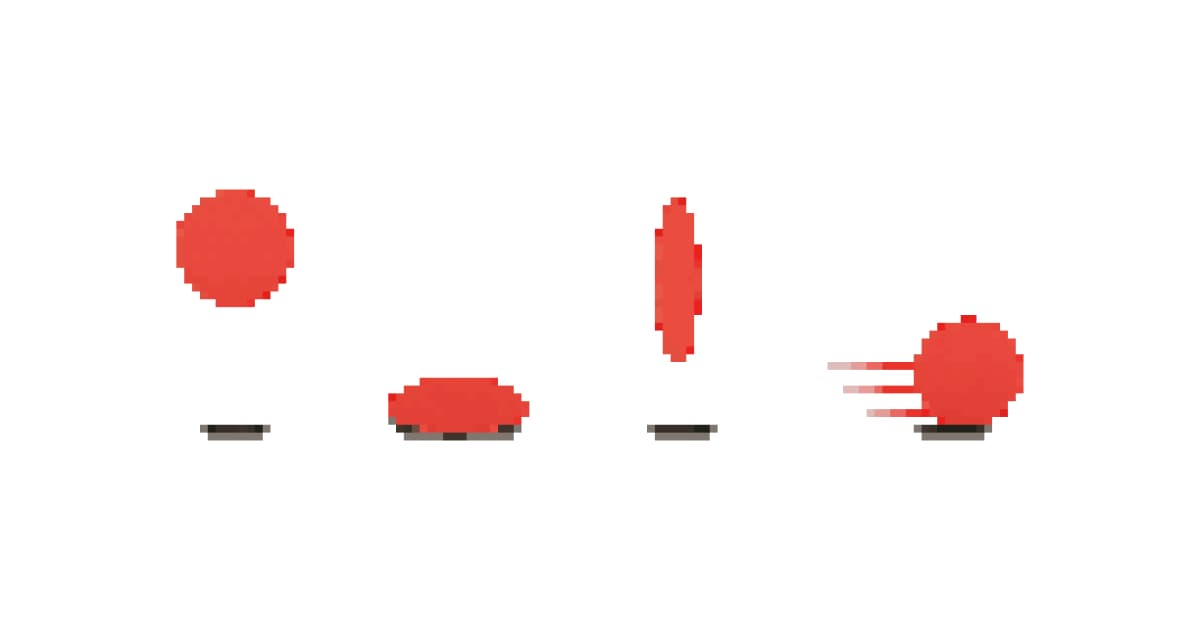 Guide
GuideThe 12 animation principles adapted for pixel art sprites
How Disney's 12 animation principles apply to sprite animation and pixel art. Practical breakdowns with frame counts, game references, and real examples.
 Guide
GuideHow to animate pixel art: walk cycles, idles, attacks
Pixel art animation step-by-step. Walk cycles, idle loops, attack sequences: what to draw, how many frames, what to skip.
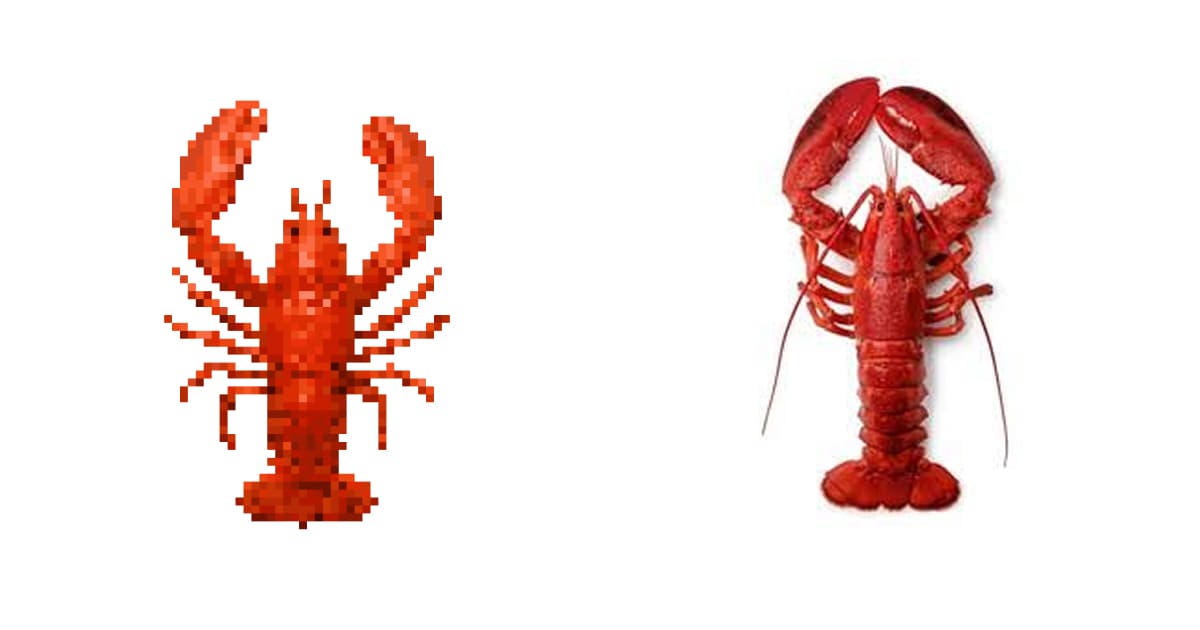 Guide
GuideHow AI sprite generators really work
How AI sprite generators actually work, which tools are worth using, and the prompts that produce usable game-ready pixel art.