
The question that stalls every project
You've got a character design. Maybe you drew it pixel by pixel, maybe you generated it with AI. Either way, you're staring at a single static frame thinking: how many frames do I actually need to make this thing walk?
Four? Eight? Twelve?
The answer isn't a single number, and honestly, most tutorials overcomplicate this. They'll show you Disney's 24-frames-per-second standard and then expect you to apply that to a 16x16 knight. That's not helpful. Pixel art sprite animation plays by different rules: fewer frames, more deliberate choices, and timing tricks that make four frames feel like twelve.
Here's what real games actually use.
Frame counts that work
Before you start drawing anything, look at what's already shipped. These numbers come from analyzing actual indie games, not animation textbooks.
| Animation | Typical frames | Notes |
|---|---|---|
| Idle | 2-4 | Breathing loop, subtle movement |
| Walk | 4-8 | 4 for small sprites, 6-8 for 32x32+ |
| Run | 6-8 | Faster timing, not necessarily more frames |
| Jump | 3-5 | Anticipation + air + land |
| Attack | 3-6 | Wind-up + strike + recovery |
| Death | 4-6 | One-shot, no loop needed |
| Hit reaction | 2-3 | Flash + recoil |
| Climb | 4-6 | Usually a ping-pong loop |
| Cast/spell | 4-6 | Similar structure to attack |
Celeste's Madeline uses a 4-frame run cycle. Shovel Knight's walk is 6 frames. Dead Cells characters have 8-12 frame attack animations, but those sprites are much larger and the game leans into fluid combat as a selling point. The common thread: nobody's using 24 frames for a walk cycle.
Your sprite size matters enormously. A 16x16 character doesn't have enough pixels to show subtle differences between 8 walk frames. You'll end up with several frames that look nearly identical. At that resolution, 4 frames is plenty. At 32x32 or 64x64, you've got room for 6-8 frames with meaningful visual differences between each one.
Why more frames isn't always better
There's a temptation to add frames because it feels like more work equals better animation. It doesn't.
Every frame you add costs production time. Not just drawing it, but maintaining it across every color palette swap, every costume variant, every directional facing. A character with 4 directions, 6 animations at 8 frames each is 192 individual frames. Bump that to 12 frames per animation and you're at 288. That's 96 extra frames to draw, debug, and keep consistent. One shortcut: use the mirror tool to flip left-facing frames into right-facing ones instead of drawing both.
File size goes up too. For a game jam, who cares. For a mobile game or a web game where you're loading sprite sheets over a network, bloated sheets mean slower load times. The sprite sheet generator has the layout controls if you want to dig into that.
Thing is, there's a point of diminishing returns where additional frames add almost nothing visually. A 4-frame walk cycle at the right timing looks good. A 6-frame cycle looks smoother. Going from 6 to 8? Marginal. Going from 8 to 12? You're probably wasting time unless your sprites are big enough to justify it.
The real skill isn't adding more frames. It's making fewer frames feel like more.
Frame timing matters more than frame count
This is the part most beginners miss entirely. They draw 6 evenly-spaced frames, play them back at a constant rate, and wonder why the animation feels flat. Even spacing is the enemy of good sprite animation.
Hold frames
A hold frame stays on screen longer than other frames. That's it. Dead simple concept, massive impact.
Take a 4-frame attack animation: wind-up, anticipation peak, strike, recovery. If you play them all at 100ms each, the attack feels mushy. Instead:
- Wind-up: 150ms (slow build)
- Anticipation peak: 200ms (brief pause, tension)
- Strike: 50ms (snap, as fast as possible)
- Recovery: 120ms (settle back)
Same four frames. Completely different feel. The pause before the strike is what sells it. Your brain expects the hit, and the sudden speed change delivers.
Shovel Knight does this constantly. The shovel attack has a visible wind-up hold that makes the swing feel heavy. Without that hold frame, the same animation looks like a wet noodle.
Variable timing in practice
Here's a pattern that works for almost any action animation:
Slow start, fast action, slow settle.
Wind-up frames get longer display times. The action frame gets the shortest. Recovery frames ease back to normal. This isn't a theory. It's how virtually every good pixel art game handles attacks, jumps, and ability animations.
| Phase | Timing | Purpose |
|---|---|---|
| Anticipation | 120-200ms per frame | Builds tension, tells player what's coming |
| Action | 30-60ms per frame | The actual strike/jump/cast, snappy |
| Follow-through | 80-150ms per frame | Settles the motion, feels natural |
| Return to idle | 60-100ms per frame | Blend back smoothly |
If your game engine lets you set per-frame durations (Godot, Unity, and GameMaker all do), use them. If you're stuck with uniform frame rates, duplicate the frames you want to hold: two copies of the wind-up frame at 60ms each is functionally the same as one frame at 120ms.
Animation principles that actually matter for sprites
The Disney 12 principles get referenced constantly. Most were designed for rubber-hose cartoons at 24fps. Only three translate directly to pixel art.
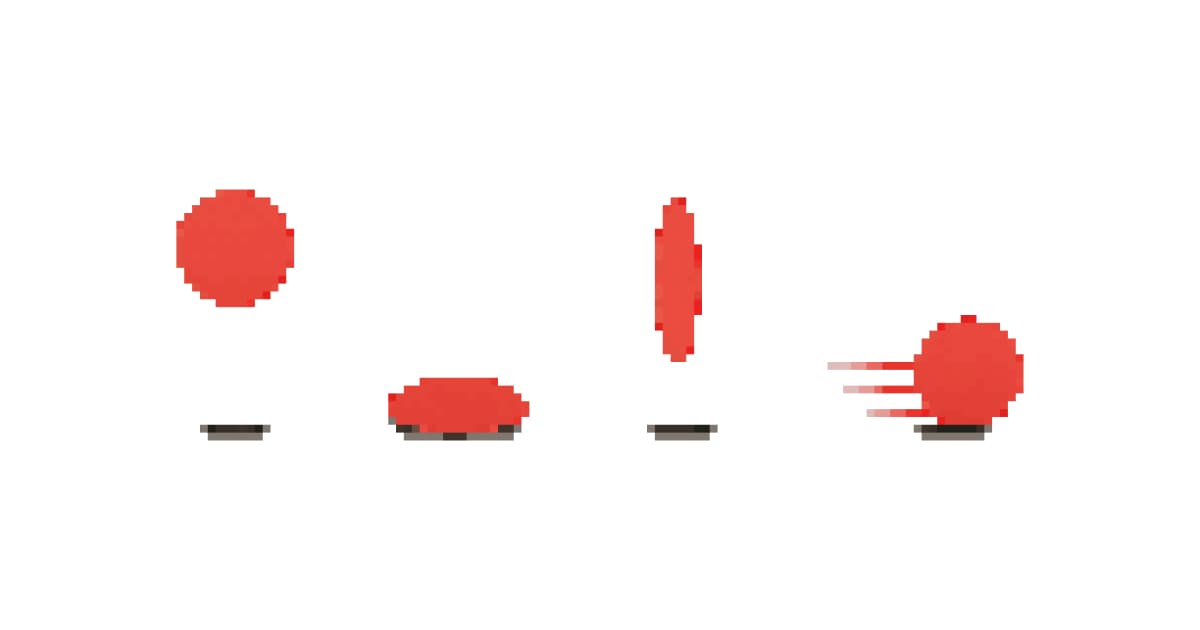
Squash and stretch
You can't literally squash a 16x16 character. But you can cheat it. A jump anticipation frame where the character is 1 pixel shorter and 1 pixel wider? Squash. The apex frame where they're 1 pixel taller and narrower? Stretch. Celeste does this with Madeline, a single pixel row of difference that you don't consciously notice, but take it away and the jump feels wrong immediately.
Anticipation
Every action needs a tell. When an enemy winds up before attacking, the player gets a visual cue to dodge. That anticipation frame isn't just animation polish; it's game design. Hollow Knight's bosses telegraph every attack with distinctive anticipation poses. Remove those frames and the game becomes unfair, not harder.
For player characters, a jump crouch that plays for 2 frames before leaving the ground makes the jump feel instant even though it technically isn't. Your brain registers the crouch as part of the action rather than a delay.
Follow-through
After a sword swing, the arm doesn't snap back to idle. It continues past the strike point, slows, then returns. In pixel art, this is 1-2 extra frames. Skip it and animations feel interrupted. Include it and they feel complete.
Loop types
Not all sprite animations loop the same way, and using the wrong loop type is a surprisingly common mistake.
Forward loop
Frame 1, 2, 3, 4, 1, 2, 3, 4...
Walk cycles, run cycles, flying: any continuous movement. Your first and last frames need to connect seamlessly. A common trick: make frame 1 a contact pose (foot hitting ground) and the last frame the passing position just before the next contact. When it loops, the foot strikes again naturally.
Ping-pong loop
Frame 1, 2, 3, 4, 3, 2, 1, 2, 3, 4...
Plays forward, then backward, then forward again. Great for breathing idles, floating objects, bobbing NPCs, anything with a back-and-forth motion. You get effectively double the animation length from half the frames.
The catch: ping-pong loops look terrible for walk cycles. A character walking forward and then moonwalking backward every other step isn't what you want. Use ping-pong for symmetric motions only.
One-shot animations
Attack, death, hit reaction, jump. Play once and stop. The important detail: whatever frame the animation ends on needs to blend cleanly into idle. If there's a big visual jump, add a transition frame.
Blending between animations
In a real game, your character constantly switches between walk, idle, jump, attack, and back. The simplest approach: design your idle pose as "home base" that every animation starts from and returns to. Walk cycle frame 1 is close to idle. Jump anticipation starts from idle. Attack winds up from idle. Clean transitions for free.
AI-assisted sprite animation workflow
Two AI workflows work today:
One-click animator (the fast path)
Our AI pixel art animation tool takes any base sprite and generates the full cycle (walk, run, idle, attack, hurt, death, or a custom prompt) as a sprite sheet or GIF. The model handles frame consistency and proportions across the cycle, which is the part most people get wrong manually. Frame count and timing are controllable in the UI. You can edit individual frames in the pixel editor afterward if a frame needs polish.
This is the recommended path for game devs who want to ship rather than perfect every pixel.
Manual hybrid (for full control)
If you need a very specific motion the animator's presets and prompts don't capture, generate distinct pose frames one at a time with the text-to-sprite generator, then assemble manually:
- Generate your base character at sprite-ai.art
- Use that as reference to draw key poses (contact, passing, up, down for a walk cycle)
- Create in-betweens manually in the pixel editor
- Assemble into a sprite sheet
- Set per-frame timing in your engine
More work, more control. Use this when the animator's output isn't exactly what you want.
Common mistakes (and how to fix them)
Too many frames for small sprites
A 16x16 character with a 12-frame walk cycle is overkill. At that resolution, frames 3 and 4 probably look identical because there aren't enough pixels to show the difference. Cut it to 4-6 frames and spend the saved time on better timing instead.
If you're new to pixel art, start with the fundamentals guide before tackling animation. Getting the base sprite right matters more than frame count.
Uniform timing on everything
Every frame at 100ms. It's the default in most tools and it's almost always wrong. Go back to the variable timing section above. Slow your anticipation frames down, speed up your action frames. This single change will improve your animations more than adding extra frames ever will.
No anticipation frames
Jump: character is standing, character is in the air. Attack: character is idle, sword is extended. These read as teleportation, not movement.
Add one frame before the action. Just one. A slight crouch before a jump. A wind-up before a swing. One frame. The improvement is absurd relative to the effort.
Inconsistent proportions between frames
Frame 1: character is 14 pixels tall. Frame 3: 15 pixels. Frame 5: head is 1 pixel wider. This creates a wobbling effect that no timing adjustment fixes. Use onion skinning to overlay your previous frame while drawing the next one. If you're a beginner, keep head, torso, and feet at fixed positions and only animate the limbs.
Forgetting the idle animation
Your character spends more time standing still than doing anything else. A static idle surrounded by animated everything else looks dead. Two frames (one slightly breathed in, one slightly breathed out) at 500-800ms each. Ten minutes of work, massive polish.
Quick reference
Bookmark this. You'll come back to it.
| Animation | Frames | Loop type | Timing pattern |
|---|---|---|---|
| Idle (breathe) | 2-4 | Ping-pong | Slow and even (400-800ms/frame) |
| Walk | 4-6 | Forward | Even (80-120ms/frame) |
| Run | 6-8 | Forward | Fast and even (50-80ms/frame) |
| Jump | 3-5 | One-shot | Variable (slow crouch, fast launch, slow apex) |
| Attack | 3-6 | One-shot | Variable (slow wind-up, fast strike, slow recover) |
| Death | 4-6 | One-shot | Starts fast, slows toward end |
| Hit reaction | 2-3 | One-shot | Fast flash, medium recoil |
| Climb | 4-6 | Ping-pong or forward | Even, medium speed |
The single biggest takeaway: frame timing beats frame count, every single time. Four well-timed frames will always look better than twelve frames at uniform speed.
Start with the minimum frames from the table above. Get your timing right. Play-test. Then add frames only where the animation still feels stiff. You'll be surprised how rarely that happens.
Now go animate something. Generate your base character at sprite-ai.art and either build frames manually or let the animator do the whole cycle for you.
FAQs
How many frames does a sprite animation need?
Walk cycles: 4-6 frames (4 for 16×16 sprites, 6-8 for 32×32+). Idle: 2-4 frames. Attack: 3-6 frames. Jump: 3-5. Most shipped indie games use these counts: Celeste, Shovel Knight, Stardew Valley all fit. Don't go higher unless your sprites are big enough to show the difference.
How do I make pixel art animation with AI?
Sprite AI's animator generates animated sprite sheets from any base sprite. Pick walk/run/idle/attack/custom and get a multi-frame cycle in seconds. Free tier available. For full manual control, generate individual poses with the text-to-sprite generator and assemble them yourself.
What's the right frame timing for a walk cycle?
80-150ms per frame for walking, 50-80ms for running. Keep timing roughly even across the cycle (unlike attacks, which use variable timing). If your engine supports per-frame durations, use them. Otherwise duplicate frames you want to hold longer.
Why does my animation look stiff with lots of frames?
Almost always a timing problem, not a frame-count problem. Even timing on every frame is the #1 mistake. Vary it: slow on anticipation, fast on the action, medium on the recovery. Four frames with varied timing beats twelve frames at uniform speed every time.
Do I need separate walk and run animations?
Not always. Plenty of shipped games use one movement animation at one speed (Stardew Valley, RPG Maker games). Only build a separate run cycle if the gameplay actually distinguishes the two states.
Related posts
 Guide
GuideThe 12 animation principles adapted for pixel art sprites
How Disney's 12 animation principles apply to sprite animation and pixel art. Practical breakdowns with frame counts, game references, and real examples.
 Guide
GuideHow to animate pixel art: walk cycles, idles, attacks
Pixel art animation step-by-step. Walk cycles, idle loops, attack sequences: what to draw, how many frames, what to skip.
 Guide
GuideHow AI sprite generators really work
How AI sprite generators actually work, which tools are worth using, and the prompts that produce usable game-ready pixel art.