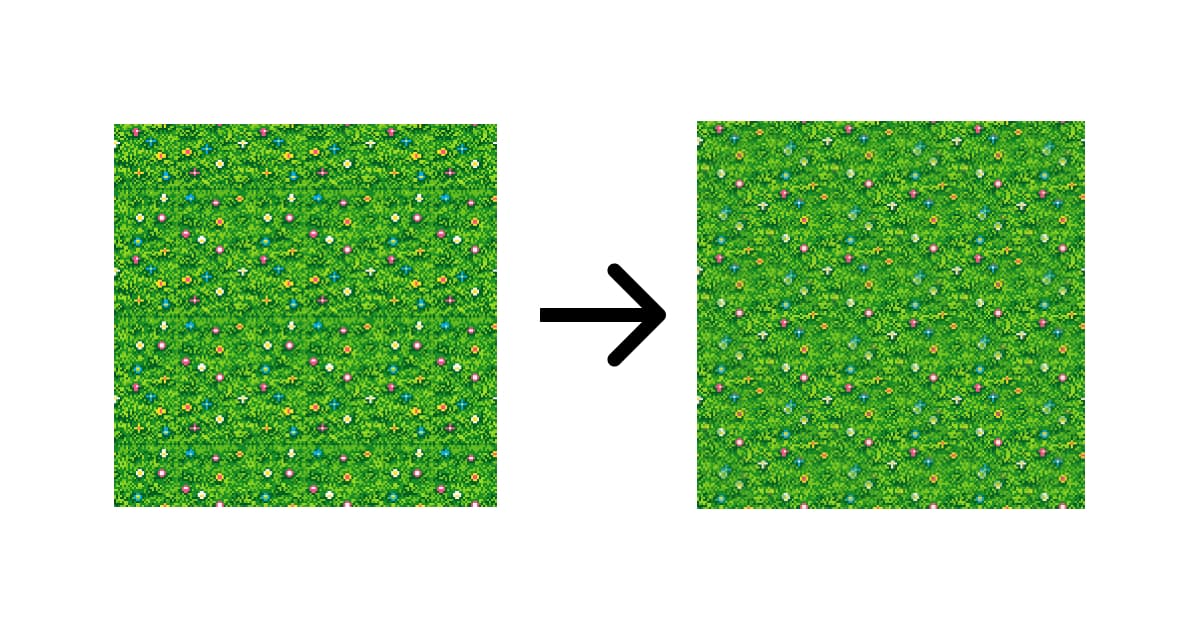
What you'll make
A working top down tileset. Not one tile, a set: two or three seamless terrain tiles that share a palette, plus the transition tiles that sit where one terrain meets another. That last part is the difference between a pile of textures and a tileset you can actually build a map with.
Most instructions on how to make a tileset stop once a single tile repeats cleanly. That is step four of seven here.
The whole thing runs on Sprite AI's tile generator and the tile editor, using the prompts printed below.
Step 1: Write the prompt
The prompt decides most of the result. There is a formula that works.
pixel art [terrain] tile, seamless, top-down view, [specific details]
| Style | Prompt | Result |
|---|---|---|
| Meadow | pixel art grass tile, seamless, top-down view, vibrant green with small scattered wildflowers | Lush and colorful, good for overworld fields |
| Plain | pixel art grass tile, seamless, top-down view, short green grass with subtle color variation | Clean and simple, works for most RPGs |
| GBA-style | pixel art grass tile, seamless, top-down view, flat green with tiny darker grass tufts, GBA era | Retro, Advance Wars feel |
| Dark forest | pixel art grass tile, seamless, top-down view, dark green mossy ground with fallen leaves | Moody, good for forest areas and dungeons |
| Dry savanna | pixel art grass tile, seamless, top-down view, yellow-green dry grass with bare dirt patches | Arid biome that pairs with sand |
What to avoid
Don't describe a scene. "Grass with a tree and a character walking" gives you a picture, not a tileable surface. Describe the surface only.
Don't put the pixel size in the prompt. The model reads "32x32" as a concept, not a dimension. Set it in the tool.
Don't write negative lighting instructions. "No borders" and "no darkening" do not work. The model still adds a vignette, and the pipeline crops it afterwards.
Step 2: Choose your size
| Size | When to use it | Colors | Notes |
|---|---|---|---|
| 32x32 | SNES and GBA era feel, the common indie choice | 12-16 | Tight but workable. Detail has to be implied rather than drawn |
| 64x64 | Detailed terrain, modern pixel art | 16-24 | Easiest to tile. Start here |
| 128x128 | HD pixel art, large environments | 24-32 | Very forgiving at the edges |
| 256x256 | Backgrounds and hero terrain | 32+ | More surface than most tilemaps need |
Start at 64x64. You get 64 pixels along each edge for the seamless pass to work with, which makes everything downstream easier. 32x32 is the floor here, and going smaller than that is a hand-pixelling job rather than a generation one.
Set width and height to the same value. Tiles are square.
Step 3: Generate
The model draws at high resolution, then the pipeline does four things: detects that the prompt describes a tile, crops the vignette that models add around edges, quantizes to your palette size, and downscales with a nearest-neighbor resize to your target dimensions.
Ten to fifteen seconds, and the tile editor opens with the result.
Step 4: Make it seamless
A tile can look perfect on its own and fall apart the moment it repeats. The tiled preview is the only honest test.
Busy surfaces forgive, flat ones don't
Worth knowing before you pick a terrain to start with. A busy surface like forest floor or long grass hides a lot, because there is detail everywhere for the eye to follow. Try the same tile settings on flat packed dirt and a faint grid appears. Nothing is wrong with the tile. Every generated tile carries a slight brightness falloff toward its edges, and when it repeats, two slightly darker edges meet and the pair reads as a line. On a busy surface that is invisible. On a near-flat one there is nothing else to look at.
So start with a textured terrain, and if you need flat ground, expect to even out the edge brightness by hand in the pixel editor.
The tile editor shows both views at once and gives you three controls.
Seamless strength (0-100%) offsets the tile by half and cross-fades the edges. Start at 100 and come down if you see artifacts. Organic terrain like grass, sand and dirt is usually fine at 100. Structured tiles like brick and stone often want 50 to 75.
Grid size (2x2 to 6x6) sets how many copies the preview shows. 3x3 catches seams. Push to 5x5 or 6x6 to catch the other failure, a pattern that repeats so obviously it reads as wallpaper.
Offset X/Y slides the whole grid so you can inspect the join at different positions. If a dark line appears at any offset, the tile is not seamless yet.
If the preview looks clean at 3x3 but shows a repeating diamond at 5x5, strength is too high. The blend uses a diamond-shaped weight function that becomes visible on tiles with strong features. Drop to 60 or 75.
Step 5: Build the rest of the set
One tile is not a tileset. A usable top down set is two or three base terrains, and the thing that makes them look like one world is a shared palette.
Generate the first terrain, then style-reference it for the rest so they inherit its palette rather than approximating it.
Generate each terrain from a fresh prompt instead and you get tiles that are individually fine and collectively wrong, because nothing ties the palette of one to the next. Add water, stone or sand the same way, referencing the same original each time so the set does not drift as it grows.
Step 6: Transition tiles
This is the step that turns terrain into a tileset, and the one most tutorials skip.
Place two terrains next to each other and the boundary is a straight line drawn with a ruler. Nothing outdoors does that, and the eye catches it immediately.
A transition tile fixes it. One terrain across the upper part, the other below, and an irregular hand-drawn edge between them that carries across from tile to tile. Drop a row of those between the two fields and the join stops reading as a boundary.
Two busy terrains can sometimes get away without one, because the eye reads the join as part of the ground. The moment one side is flat, or the palettes sit far apart, you need the transition.
Generate it the same way, referencing your first tile, and describe the boundary explicitly: which terrain is on top, which is below, and that the edge between them should be irregular rather than straight.
How many transitions you need depends on how far you take it.
| Approach | Tiles per terrain pair | When it is enough |
|---|---|---|
| One edge tile | 1 | Straight horizontal boundaries only. Fine for a first map or a jam |
| Four edges | 4 | Top, bottom, left and right. Handles rectangular regions |
| Edges and corners | 8 | Adds outer corners. The usual hand-authored set |
| Blob autotiling | 47 | Every corner and edge case, engine picks automatically |
Start with one and add the others when a map actually needs them. A 47-tile blob set is the right answer for a shipping game and the wrong place to begin.
Step 7: Export for your engine
Download each tile as PNG, then set the import up so nothing gets blurred.
Godot. Import the PNG, set Filter to false in the Import dock, enable Repeat, then create a TileSet resource. The Godot sprites guide covers the whole process.
Unity. Select the PNG, set Filter Mode to "Point (no filter)" and Wrap Mode to "Repeat". Open Window > 2D > Tile Palette and drag the tiles in.
GameMaker. Add the PNG as a sprite, then create a Tile Set from it. See the GameMaker sprites guide.
Tiled. File > New Tileset, select the PNG, set tile size to match what you generated. If the seams look wrong in Tiled they will look wrong in game.
Common mistakes
Generating a scene instead of a surface. A prompt that describes a landscape returns a horizon with a foreground and a background. That cannot tile. Describe what the ground looks like, nothing else.
Letting the palette drift. Generating each terrain from a fresh prompt gives you tiles that are individually fine and collectively wrong, because the greens and browns come from different places. Style-reference the first tile.
Skipping the tiled preview. A single tile tells you almost nothing. The 3x3 grid catches most seam problems in about two seconds.
Stopping at base terrain. Two beautiful seamless tiles with no transition between them still make a map that looks like a checkerboard. The edges are the work.
FAQs
How do I make a tileset?
Generate one seamless terrain tile, confirm it repeats cleanly in a tiled preview, then style-reference that tile to generate the other terrains so the palette holds across the set. Finish with transition tiles for each pair of terrains that touch. Two terrains plus one transition is a working tileset.
What is the difference between a tile and a tileset?
A tile is one repeating image. A tileset is the collection a map is built from: several seamless terrains plus the transition pieces where they meet. The transitions are what let a map read as one continuous world instead of blocks of texture.
How many tiles does a top down tileset need?
Fewer than you would guess. Two base terrains and one transition is enough to build a playable map. A shipping game usually wants three to five terrains with 8-tile edge sets between the pairs that touch, which is 40 to 60 tiles total.
What size should a tileset tile be?
64x64 for generation, because the seamless pass has more edge to work with and the model expresses pattern better at that size. 32x32 is the smaller common choice and the floor for generation here. Scale down after the seamless pass if your game needs it.
Why does my tile have visible seams?
Three usual causes. The prompt described a scene with a horizon rather than a flat surface, the tile kept a vignette so its edges are darker than its middle, or the prompt never asked for seamless in the first place. The tile mode handles all three, and the tiled preview tells you which one you are looking at.
How do I make an existing tile seamless?
Upload it to the tile editor and run the seamless pass. By hand the method is the same idea: offset the image 50% in both directions so the original edges land in the middle, then paint out the seams that now cross the center.
Can I use AI-generated tiles commercially?
Yes. Tiles you generate on Sprite AI are yours to ship in commercial games.
Related posts
 Blog
BlogAnime pixel art: the JRPG tradition that never left
How anime pixel art evolved from SNES JRPGs to modern indie games. Techniques for eyes, hair, poses, and palettes at small scales.
 Blog
BlogHow to make a pixel art game in 6 steps
A six-step roadmap for your first pixel art game. How small to start, which engine to pick, how to make the sprites, and how to finish.
 Blog
BlogIs pixel art hard? Here's the honest answer
The truth about learning pixel art difficulty. What's genuinely hard, what's easier than you think, and how to shortcut the frustrating parts.