
This pixel art tutorial makes one sprite, a green slime, from empty canvas to game-ready PNG. Six steps, every one shown in the Pixel editor, which is free in the browser. Follow along with your own character and you'll finish with a sprite and the workflow to make the next hundred. And if you'd rather skip learning to draw it yourself, the AI sprite generator makes the sprite from a text prompt and you jump straight to the finishing step.
Block

Outline

Shading

Step 1: set up a 64x64 canvas
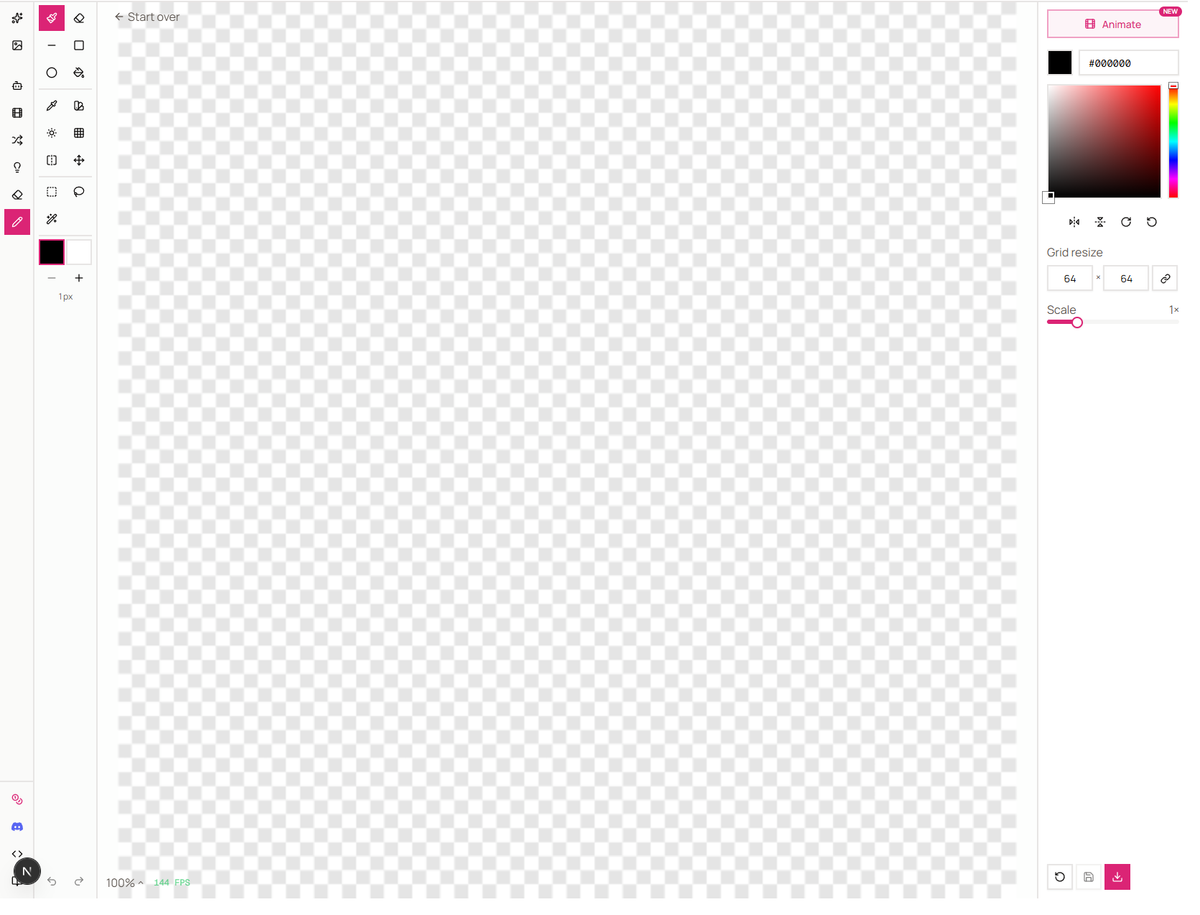
Open the Pixel editor and start from scratch. The default 64x64 canvas is the right first size, big enough for a face and a readable pose, small enough that every pixel still matters. If you'd rather work at 32x32 or 16x16, resize the grid in the right panel, and know that smaller is harder, not easier.
Step 2: pick your colors before you draw
Decide the palette now, not during. Around 16 colors suits a 64x64 sprite; scale it to your canvas, 4 to 8 for tiny 16px icons, 24 or more once you pass 64px. Organize them as ramps, each ramp one material's colors ordered dark to light, and shift hue as you go, shadows toward blue, highlights toward yellow. That hue shift is most of what separates living pixel art from flat clip art.
Our slime uses eleven colors, mostly one green ramp plus darks for the eyes and outline. The palette generator builds ramps from a base color, and the palette extractor pulls a palette from any reference image if you'd rather start from something you love.
Step 3: block the silhouette
One color, shape only. Grab the pen, pick one color, and draw the outline of the whole character, then fill it. No features, no shading, just the blob's posture and drape.
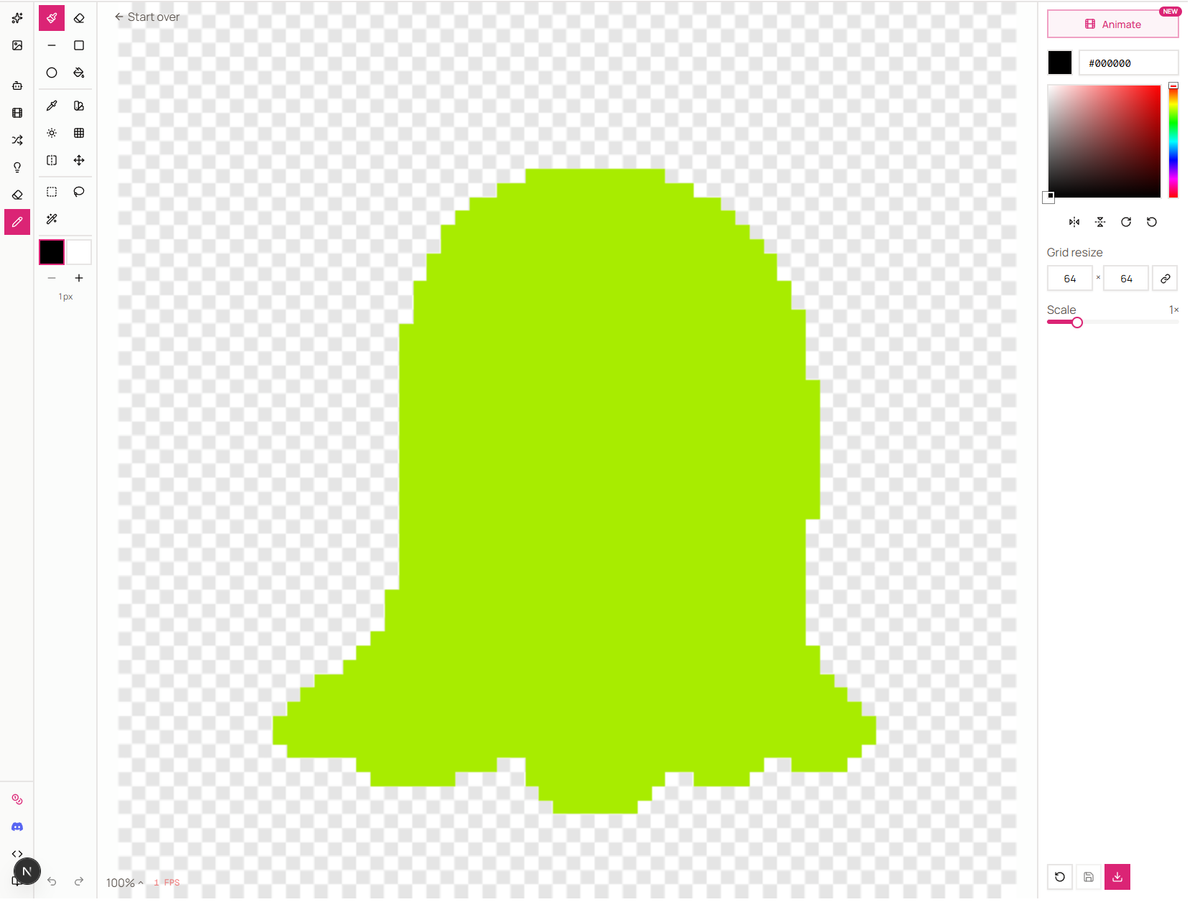
Squint at it. If the silhouette doesn't read as your character with the details missing, fix it now, because no amount of shading will save a shape that doesn't read. This is the cheapest moment to change anything. We blocked ours in the body's own #A8EC00, so the fill from step 2 is already in place.
Step 4: fill in the flat colors
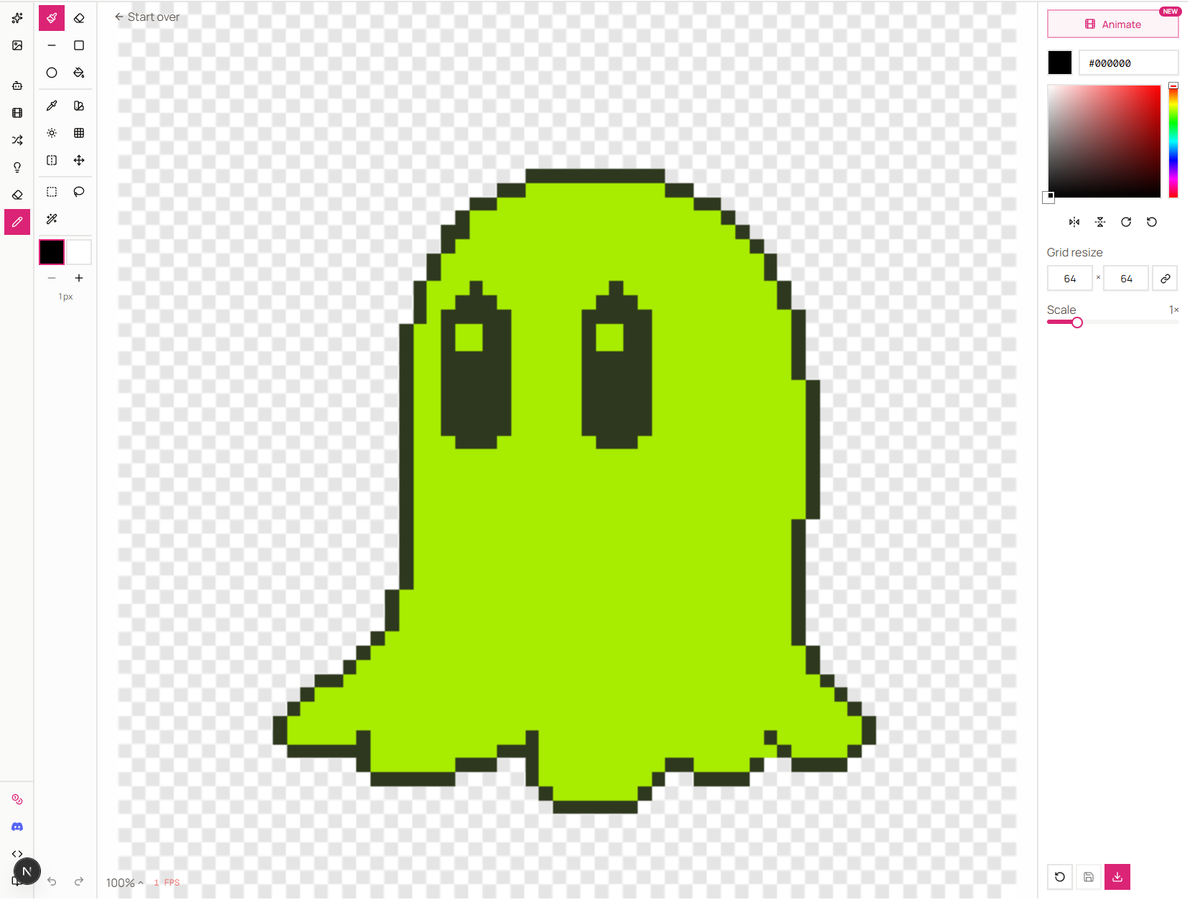
Split the silhouette into flat regions of base color, body, eyes, mouth, nothing shaded yet. The fill tool does most of the work. Proportions get fixed in this pass too, moving a flat-colored limb costs nothing.
Step 5: shade and add the highlights
Pick where the light comes from, usually top-left, and commit. Add one darker ramp step on the surfaces facing away, one lighter step on the surfaces facing in, then the finishing touches from the same pass. The white glint in the eyes, the highlight streak on the head, softening the longest curves with in-between colors. Check the outline last, either every edge outlined or none, mixed reads as unfinished.
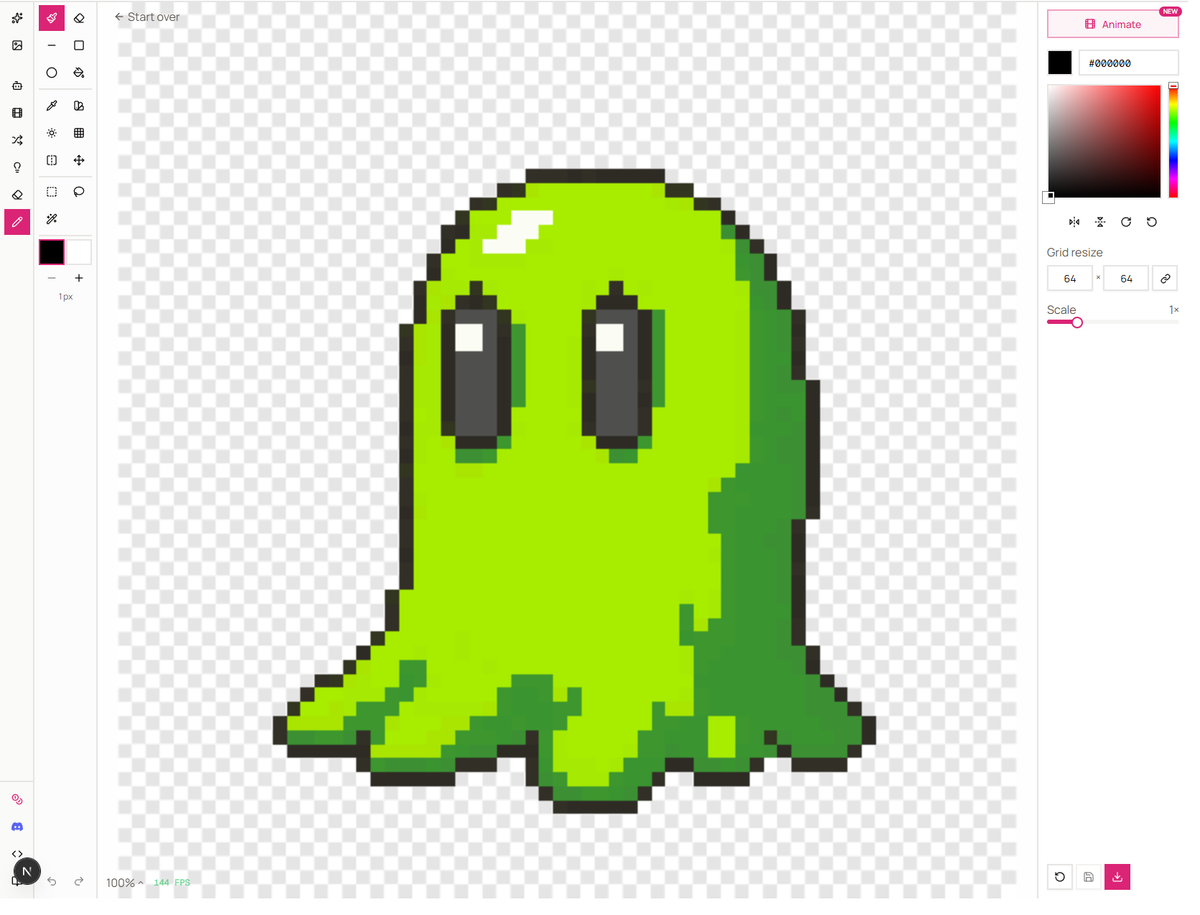
The classic mistake here is pillow shading, a dark edge fading to a bright center regardless of light direction. It happens when you shade "around the object" instead of from a light source, and it instantly marks a sprite as amateur work. And the reason this pass comes last of the drawing steps is that every pass locks the one before it. Beginners who decorate first end up polishing a face on a broken pose. When you're ready for more detailed pixel art, nothing new is required, the same passes scale up. Bigger canvas, more ramp steps, more time.
Step 6: export it for your game
Download the sprite as a PNG at its native 64x64 and let the engine do the scaling, since pre-scaled exports only matter for the web. If it's animated, pack the frames with the sprite sheet maker into the single PNG that Unity, Godot, and GameMaker all read.
Or skip the manual road
Everything above assumes you're drawing. The AI sprite generator on Sprite AI (sprite-ai.art) collapses steps 1 through 4 into a prompt, you describe the character and get a grid-clean sprite at 32x32 up to 512x512, then finish it with exactly step 5 above in the editor. It's the fastest way to iterate, concept ten slimes, keep one, make it yours.
Past a handful of sprites, the same generator runs as a REST API and an MCP server, so a Claude or Cursor session can create assets while you code the level that uses them, and the Aseprite plugin drops generated sprites into a desktop pipeline. Concept in the browser, batch over the API, finish by hand.
Describe a character and get a grid-clean sprite in seconds, then open it in the free Pixel editor and make it yours. Free credits on signup, no card.
How to make good pixel art
Making good pixel art is mostly the absence of five mistakes, and every beginner makes all of them.
- Pillow shading. Shading from the outline inward instead of from a light source. Pick a direction and commit
- Banding. Parallel lines of color hugging each other along an edge, which reads as blur. Break the bands or drop a step
- Too many colors. Thirty freehand-picked colors where a few ramps would look richer. Count yours; the number should scare you a little
- Outline inconsistency. Half the sprite outlined, half not, no decision made. Either works, mixed doesn't
- Details first. An hour on a face attached to a broken pose. Silhouette, flats, shading, detail, in that order, every time
FAQs
How long does it take to learn pixel art? Readable 64x64 sprites take a week or two of evenings. Confident shading and animation take a few months of regular practice, and it compounds fast because every sprite exercises the same five skills.
What size should beginner pixel art be? 64x64 or 32x32. Small enough that decisions stay manageable, big enough for personality. Drop to 16x16 once your silhouettes read reliably; we have a 16x16 walkthrough for when you do.
Do I need a drawing tablet for pixel art? No. Pixel art is placement, not strokes. A mouse is what most working pixel artists use.
Is pixel art easier with AI? Faster, not easier. A generator hands you a clean starting sprite in seconds, but palette discipline, silhouette, and shading judgment still decide whether the finished piece looks good.
How many colors should a pixel art sprite use? Around 16 for a 64x64 sprite, fewer as the canvas shrinks. Built as ramps, not picked freehand.
Related posts
 Blog
BlogAnime pixel art: the JRPG tradition that never left
How anime pixel art evolved from SNES JRPGs to modern indie games. Techniques for eyes, hair, poses, and palettes at small scales.
 Blog
BlogHow to make a pixel art game in 6 steps
A six-step roadmap for your first pixel art game. How small to start, which engine to pick, how to make the sprites, and how to finish.
 Blog
BlogIs pixel art hard? Here's the honest answer
The truth about learning pixel art difficulty. What's genuinely hard, what's easier than you think, and how to shortcut the frustrating parts.