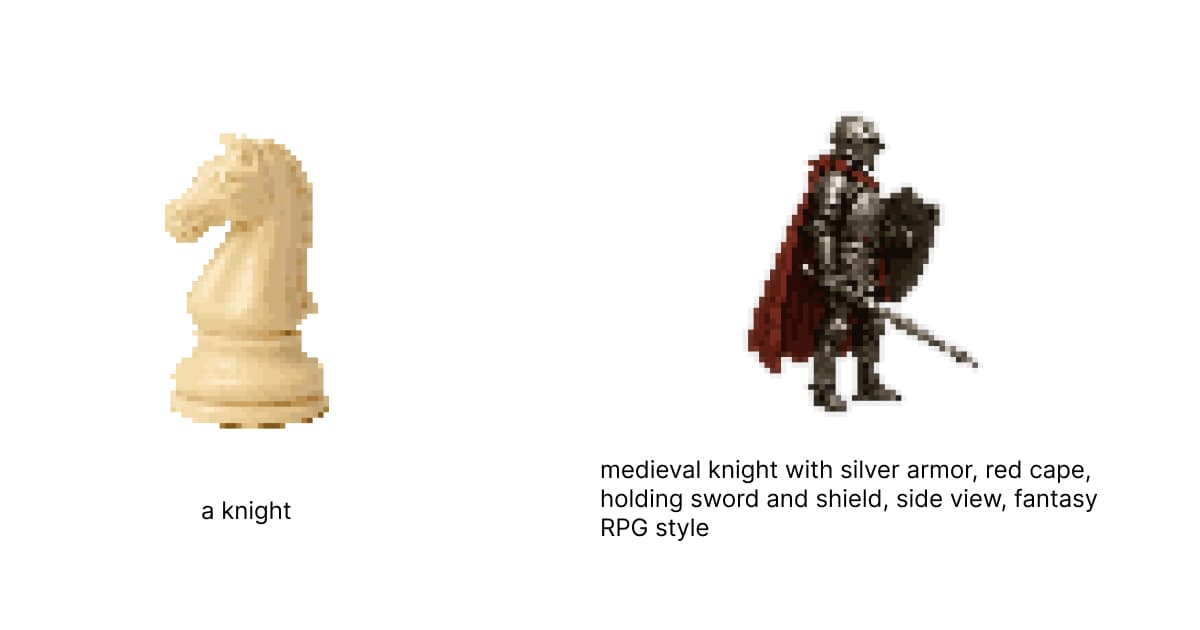
Why prompting matters
The difference between a mediocre AI sprite and a great one usually isn't the tool. It's the prompt.
A vague prompt like "knight" might give you anything. A specific prompt like "pixel art knight, silver armor, side view, attack pose, 32x32, limited palette" gives you exactly what your game needs.
This guide covers the techniques that consistently produce better results. We'll use Sprite AI (sprite-ai.art) for examples, but the principles apply to any AI sprite generator.
Prompt structure that works
Every effective sprite prompt has these components:
[medium] [subject] [details] [view/pose] [technical specs]Component breakdown
Medium: What type of art
- "pixel art"
- "16-bit style"
- "retro game sprite"
Subject: What you're creating
- "knight character"
- "slime enemy"
- "health potion"
Details: Specific characteristics
- "silver armor, blue cape"
- "green, translucent, bouncy"
- "red liquid, glass bottle"
View/Pose: Perspective and action
- "side view, idle pose"
- "front facing, attack stance"
- "three-quarter view, walking"
Technical specs: Size and format
- "32x32"
- "game sprite"
- "transparent background"
Example with all components
pixel art knight character, silver armor with blue cape,
side view, attack pose with sword raised,
32x32, game sprite, limited palette
This tells the AI sprite generator everything it needs.
Style keywords that actually work
These keywords consistently influence AI sprite generator output:
Era/aesthetic
| Keyword | Effect | Best for |
|---|---|---|
| 8-bit | Very limited colors, blocky | Retro/NES style |
| 16-bit | More colors, smoother | SNES/Genesis style |
| retro | General vintage feel | Classic games |
| modern pixel art | Clean, more colors | Contemporary indie |
| minimalist | Fewer details | Simple/iconic sprites |
Mood/feel
| Keyword | Effect | Best for |
|---|---|---|
| cute / chibi | Big head, small body | Friendly games |
| dark / gritty | Muted colors, serious | Horror, dark fantasy |
| vibrant | Saturated colors | Colorful platformers |
| muted | Desaturated, soft | Atmospheric games |
| fantasy | Magical, stylized | RPGs, adventure |
Technical
| Keyword | Effect | Best for |
|---|---|---|
| limited palette | Fewer colors | Cohesive style |
| clean edges | Sharp outlines | Readable sprites |
| transparent background | No background | Game-ready export |
| tileable | Seamless edges | Background tiles |
| game sprite | Formatted for games | All game sprites |
View and pose keywords
Getting the right angle is critical for game sprites.
Views
Side view - Standard for platformers
pixel art character, side view, profileFront view - RPG dialogue, selection screens
pixel art character, front view, facing cameraTop-down - Zelda-style games
pixel art character, top-down view, overheadThree-quarter / 3/4 - Classic RPGs
pixel art character, three-quarter view, angledIsometric - Strategy games
isometric pixel art character, 2:1 perspectivePoses
Idle - Default standing
idle pose, standing, relaxedWalk cycle frame - Animation
walking pose, mid-stride, right foot forwardAttack - Combat
attack pose, sword swing, action stanceHurt/damage - Feedback
hurt pose, recoiling, damagedSize specifications
Be explicit about dimensions:
Exact size:
32x32 pixels
64x64
16x16
Relative size:
small sprite
large character
icon size
Common game sizes:
| Use case | Recommended size | Prompt text |
|---|---|---|
| UI icons | 16×16 | "16x16, icon size" |
| Items/pickups | 16×16 or 24×24 | "small item, 16x16" |
| Characters | 32×32 or 48×48 | "32x32, character sprite" |
| Detailed characters | 64×64 | "64x64, detailed" |
| Bosses | 64×64 to 128×128 | "large sprite, 128x128" |
Prompt patterns by sprite type
Player characters
pixel art [class] character, [distinguishing features],
[view] view, [pose] pose, [size],
game sprite, limited palette

Example:
pixel art warrior character, red hair and steel armor,
side view, idle pose, 32x32,
game sprite, limited palette
Enemies
pixel art [creature] enemy, [mood/color],
[view] view, [pose/action],
[size], game sprite, [style]

Example:
pixel art ghost enemy, blue and translucent,
front view, floating, menacing,
32x32, game sprite, spooky
Items and pickups
pixel art [item name], [color/material],
[key visual detail], game item,
[size], clean edges

Example:
pixel art mana potion, blue liquid,
glowing, magical, game item,
16x16, clean edges
Environment tiles
pixel art [terrain] tile, [style],
tileable, seamless edges,
[size], game background

Example:
pixel art grass tile, lush green,
tileable, seamless edges,
32x32, game background
UI elements
pixel art [element] icon, [style],
clean, readable, UI element,
[size], [color scheme]

Example:
pixel art heart icon, health indicator,
clean, readable, UI element,
16x16, red and pink
Common mistakes and fixes
Mistake 1: Too vague
Bad: knight
Good: pixel art knight character, silver armor, side view, 32x32, game sprite
The AI needs context. "Knight" could be a chess piece, a photo, or a medieval painting.
Mistake 2: Contradictory terms
Bad: simple detailed pixel art with lots of intricate simple details
Good: pixel art character, simple design, clean shapes, minimal detail
Pick a direction and commit.
Mistake 3: Wrong medium
Bad: knight character for my game (no "pixel art")
Good: pixel art knight character, game sprite
Always specify "pixel art" or the AI might generate other styles.
Mistake 4: Ignoring size
Bad: pixel art detailed character with ornate decorations
Good: pixel art character, simple design, 16x16
Detailed descriptions for tiny sprites don't work. Match complexity to size.
Mistake 5: Forgetting game context
Bad: beautiful pixel art illustration of a warrior
Good: pixel art warrior, game sprite, transparent background, side view
"Illustration" signals art piece. "Game sprite" signals usable asset.
Iteration strategies
Strategy 1: Start simple, add detail
Round 1: pixel art knight, side view, 32x32
Evaluate. If the base is wrong, adjust the core concept.
Round 2: pixel art knight, silver armor, side view, 32x32
Add one detail at a time.
Round 3: pixel art knight, silver armor, blue cape, side view, idle pose, 32x32
Refine until you get what you need.
Strategy 2: Generate variations
Same prompt produces different results each time. Generate 3-4 versions:
pixel art fire mage, red robes, casting spell, side view, 32x32Pick the best one. Don't over-edit the prompt if the concept is right.
Strategy 3: Reference what works
When you get a great result, save the prompt. Build a library of prompts that work for your style:
My style keywords: "limited palette, clean edges, slight outline"
My size: "32x32"
My view: "side view"

Template:
pixel art [subject], [details], side view, 32x32,
limited palette, clean edges, slight outline
Advanced techniques
Negative guidance
Some AI sprite generators support negative prompts. Specify what you don't want:
pixel art knight, side view
Negative: blurry, realistic, photograph, gradient
Style anchoring
Reference specific game aesthetics:
pixel art character, Celeste style, pastel colors
pixel art enemy, Shovel Knight inspired, NES palette
pixel art item, Stardew Valley aesthetic
Batch consistency
For multiple sprites in one game, use identical style suffixes:
Sprite 1: pixel art hero, blue armor, [standard suffix]
Sprite 2: pixel art slime enemy, green, [standard suffix]
Sprite 3: pixel art health potion, red, [standard suffix]

Standard suffix: side view, 32x32, limited palette, clean edges, game sprite
Prompt templates
Copy and customize these:
Character template:
pixel art [class/role] character, [hair] hair, [outfit description],
[view] view, [pose] pose, [size],
game sprite, limited palette, [mood/style]
Enemy template:
pixel art [creature type] enemy, [color], [personality trait],
[view] view, [action/pose], [size],
game sprite, [mood/style]
Item template:
pixel art [item name], [material/color],
[key visual feature], game item, [size],
clean edges, transparent background
Tile template:
pixel art [terrain/surface] tile, [style/biome],
tileable, seamless, [size],
game background, [lighting/mood]
Practice exercises
Exercise 1: Specificity ladder
Start vague, get specific:
characterpixel art characterpixel art warrior characterpixel art warrior character, female, red armorpixel art warrior character, female, red armor, side view, attack pose, 32x32
Generate at each level. See how specificity improves results.
Exercise 2: Style exploration
Same subject, different styles:
pixel art knight, 8-bit stylepixel art knight, 16-bit stylepixel art knight, modern pixel artpixel art knight, minimalistpixel art knight, detailed, high resolution
Learn what each keyword actually does.
Exercise 3: View consistency
Same character, all views:
pixel art mage, front view, 32x32pixel art mage, side view, 32x32pixel art mage, back view, 32x32pixel art mage, three-quarter view, 32x32
Practice maintaining character identity across angles.
Start practicing on sprite-ai.art
The best way to learn prompting is to generate sprites. Try these now:
Experiment. Iterate. Build your prompt library. The skill transfers to any AI sprite generator you use.
FAQs
What makes a good AI sprite prompt?
Subject + style + view + size + game-specific keywords. Example: "pixel art knight, silver armor, side view, 32×32, game sprite, limited palette." 2-3 high-impact keywords beat 10 weak ones. Always include "game sprite" or "game asset" because it signals clean, usable output instead of an illustration.
Why does my AI sprite look like an illustration instead of a game sprite?
Two usual causes: missing the "game sprite" / "game asset" keyword, or generating at the wrong size. Sprite AI generates at exact pixel sizes (32×32 to 400×400). Picking the right size signals to the model that you want a sprite, not an illustration.
How do I make AI sprites match my game's art style?
Three techniques, in order of effectiveness: (1) palette transfer to lock every sprite to your chosen palette regardless of generation, (2) consistent prompt structure with the same style keywords every time, (3) refine in the pixel editor to enforce outline and proportion rules.
Should I include exact pixel counts in my prompt?
Mostly no. "3-pixel-wide sword" is too granular, and AI generation isn't pixel-perfect on details that small. Generate first, then fix specific pixel-level details in the pixel editor.
Which keywords have the biggest impact on AI sprite output?
High impact: "retro" / "8-bit" / "NES style" (forces limited palettes), "game sprite" / "game asset" (signals clean output), "limited palette" (improves cohesion), "side view" / "front view" / "isometric" (fixes perspective). Medium impact: "clean edges," "simple." Low impact: hex codes (most models ignore them), emotion descriptors.
Related posts
 Guide
GuideHow AI sprite generators really work
How AI sprite generators actually work, which tools are worth using, and the prompts that produce usable game-ready pixel art.
 Blog
BlogTurn any photo into pixel art (3 methods)
Convert photos to pixel art using free tools, Photoshop, or AI generation. Step-by-step methods with quality and speed comparisons.
 Blog
BlogAI sprite generator vs hiring an artist for your game
AI sprite generator vs hiring a pixel artist. Compare cost, speed, quality, and when each makes sense for indie game development.