
Quick answer
- Sprite AI if you want grid-matched sprites plus the free browser tools and a 50k asset library.
- Retro Diffusion if you want per-image pricing and 16×16 output. Their flagship model is genuinely excellent.
- PixelLab if you need 8-directional rotations or tilesets. Widest toolset of anyone here.
- Aseprite ($20, once) if you'd rather draw it yourself. Still the desktop standard.
- Piskel or Libresprite if your budget is zero.
There's no single winner. There's a right answer per job, and below is how I sorted them.
What you'll pay, and what you own
Licensing is the question everyone asks last and should ask first. If you're shipping a commercial game, "can I actually sell this?" matters more than output quality.
| Tool | Price | Commercial use |
|---|---|---|
| Sprite AI | 15 free gens no card, +10 for joining the Discord, then $8 to $50/mo | Yes. Sprites made on a paid plan are yours, we claim no ownership. Public gallery sprites are free to use |
| Retro Diffusion | Pay per image, ~$0.015 to $0.18 | Yes, explicitly |
| PixelLab | Free tier + subscription tiers | Yes |
| SpriteCook | 40 free credits / 30 days, then credits | Yes |
| Pixie.haus | Free tier + paid | Check current terms |
| Adobe Firefly | Included with an Adobe account | Yes, and their indemnification is the strongest here |
| Aseprite | $20 one-time | Yours, it is just an editor |
| Piskel / Libresprite / GraphicsGale | Free | Yours |
The AI generators
These are the ones actually competing. I've used all of them.
Sprite AI
The thing we built for is size control. You pick 32×32 up to 512×512 and the model generates on that grid, rather than producing a big illustration and shrinking it afterwards. That distinction is the whole ballgame for game dev, because a downscaled 1024px image has soft edges and off-grid pixels no matter how good it looked at full size.
Around that sit the parts you'd otherwise stitch together yourself: an animator that takes custom prompts rather than four fixed presets, restyling for generating variants of a sprite you already like, and a normal map generator, which I haven't found anywhere else in this category. There's an API and an MCP server, plus an Aseprite plugin so you can generate without leaving your editor.
Then there's the part people miss: 20+ free browser tools, no account required, and a public gallery of 50k+ assets you can just use.
Where it falls short: there's a learning curve to getting good output. We also stop at 32px, and that one's deliberate. We shipped 16×16, people didn't like what came back, so we pulled it rather than leave a size that disappoints. Retro Diffusion and PixelLab both still offer it. Try theirs and judge for yourself.
Retro Diffusion
Four models at different price points, from RD Fast at roughly a cent and a half up to RD Pro at $0.18. Pro accepts up to nine reference images to lock a character down, and it produces real grid-aligned pixels at 16×16 through 384×384. If you're doing genuine 16-bit-era work, that 16px floor is the reason to be here.
The pay-per-generation model is a real philosophical difference. No subscription, prepaid balance, price shown up front. They lean developer-first: full API, hosted MCP server, and a free Pixel Art Fixer that repairs off-grid AI output with no signup.
Where it falls short: the web UI is the weakest part of an otherwise strong product. It's built for people who'll reach for the API.
PixelLab
The OG of AI pixel art, and still the widest toolset in the category. Animation, rotation, style-consistent editing with true inpainting, environments, tilesets, UI elements. The 4 and 8-directional rotation is the standout, and anyone who's hand-drawn eight-direction walk cycles knows exactly why.
Their size range is the widest here too: 16×16 up to 512×512 square, and wider still on non-square aspect ratios. Skeleton-based animation controls are theirs alone. Big Discord community.
Where it falls short: the UI is hard to navigate and the web editor is Pixelorama, a third-party tool rather than something built for the workflow. The animation model is not their strongest piece.
SpriteCook

Newer, and moving fast. Character creator, style sets that produce 20 matched sprites at once, an animator, and agent plugins for Claude Code, Cursor and VS Code.
Where it falls short: it's built on general image models (their own UI lets you pick between GPT Image and Nano Banana), so you don't set the grid size before generating. You get something grid-matched, just not at the dimensions you asked for. Fine for prototyping, awkward for production where every sprite has to be 48×48.
Pixie.haus

Generation, animation and editing in one place, so the feature list reads well.
Where it falls short: the interface is the roughest of anything here, and it works by pixelating the output of general image models, so there's no sprite size control. Same structural problem as SpriteCook, hitting you at the same point: the moment you need a specific dimension.
Adobe Firefly

Firefly is Adobe's general image model with a pixel art prompt on top, and their own model picker shows you what's underneath. You can't set pixel dimensions at all. It'll make you a nice picture that looks like pixel art. It won't make you a sprite.
If your budget is literally zero and you just need something pixel-ish, you can get the same result from ChatGPT with a prompt like "Retro 8-bit pixel art, limited palette of up to 30 bold colors, clearly visible square pixels, simplified background, minimal." Same output, no signup.
The same prompt, asked of everyone
I gave all five the same brief: a knight with a red cape, side view, at 64×64. No retouching, no cherry-picking, these are the raw exports.
Sprite AI

Retro Diffusion

PixelLab

SpriteCook

Adobe Firefly
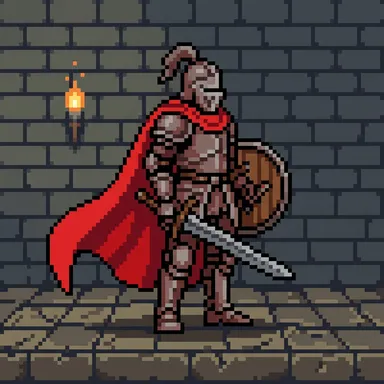
The pictures are the argument, but the file properties make it undeniable:
| Tool | Size returned | Unique colors | Transparency |
|---|---|---|---|
| Sprite AI | 64×64 | 16 | Yes |
| Retro Diffusion | 64×64 | 24 | Yes |
| PixelLab | 64×64 | 41 | Yes |
| SpriteCook | 72×72 | 576 | Yes |
| Adobe Firefly | 1024×1024 | 64,309 | No |
Two numbers decide whether a sprite is usable: the exact size, and a palette small enough to control. Three tools hit 64×64 with 16 to 41 colors, all of which you can recolour to match a game. SpriteCook drifted to 72×72 with 576 colors, close enough to look fine and wrong enough to break a tilemap. Firefly returned a 1024×1024 illustration with 64,309 colors and no alpha channel, so there isn't even a transparent background to drop into a scene.
Manual editors
Still the right answer for hero characters and final polish.
Aseprite
The industry standard. $20 once, animation timeline, onion skinning, tilemaps, Lua scripting. Absurd value. The learning curve is real, and if you're serious about pixel art you'll end up here anyway. Pair it with our plugin and you can generate a base sprite without leaving the app.
Libresprite
The same thing, forked and free, if $20 is genuinely out of reach.
Piskel
Where most people should start. Browser-based, no account, real-time animation preview. We wrote up the Piskel comparison in detail if you're deciding between the two.
Pixilart
A gallery with an editor attached rather than the reverse. The community and challenges are the draw, plus a mobile app for drawing on a phone. Ads on the free tier, and there are decent alternatives if that bothers you.
Sprite AI editor
Free and browser-based like Piskel, with the 20+ tools sitting next to it: background removal, palette transfer, upscaling, grid overlays. The editor itself needs no account.
Side-by-side comparison
| Tool | Size control | Animation | Editor | Free tier | API / MCP |
|---|---|---|---|---|---|
| Sprite AI | ✅ | ✅ | ✅ | ✅ | ✅ |
| Retro Diffusion | ✅ | ✅ | ⚠️ | ✅ | ✅ |
| PixelLab | ✅ | ✅ | ⚠️ | ✅ | ✅ |
| SpriteCook | ❌ | ✅ | ❌ | ✅ | ✅ |
| Pixie.haus | ❌ | ✅ | ⚠️ | ✅ | ❌ |
| Adobe Firefly | ❌ | ❌ | ❌ | ✅ | ❌ |
| Aseprite | ✅ | ✅ | ✅ | ❌ | ⚠️ |
| Piskel | ✅ | ✅ | ✅ | ✅ | ❌ |
| Pixilart | ✅ | ✅ | ✅ | ✅ | ❌ |
| Libresprite | ✅ | ✅ | ✅ | ✅ | ❌ |
Size control is the column that matters. A green check means the tool generates at the resolution you picked. A red cross means it makes a big image and shrinks it.
Which one should you pick?
Just starting out? Piskel to learn the fundamentals, or Sprite AI's free tier if you'd rather see results first and learn after.
Shipping a real game? Sprite AI, PixelLab, or Retro Diffusion. All three give you actual size control and workable animation. Pick on pricing model and which toolset matches your pipeline: rotations lean PixelLab, per-asset cost accounting leans Retro Diffusion.
Need true 16×16? Retro Diffusion or PixelLab. We tried it, pulled it, and start at 32.
Hero characters and final polish? Aseprite, every time. AI gets you the first draft of the 50 item icons. It doesn't get you the protagonist.
Zero budget? Piskel or Libresprite for drawing, and a prompt into whatever free image model you already have for placeholders.
Pick a size from 32 to 512, describe the sprite, get it back on that exact grid. 15 free generations, no card, and another 10 if you join the Discord.
FAQs
Is there a free AI pixel art generator?
Yes, several. Sprite AI gives you 15 generations with no card, plus another 10 if you join the Discord, so 25 to try it properly. Retro Diffusion starts every account with free balance, SpriteCook gives 40 credits every 30 days, and Adobe Firefly is included with a free Adobe account. Of those, only Sprite AI and Retro Diffusion let you set the sprite size, which is what makes output usable in an engine rather than just nice to look at.
What's the best free pixel art generator for actually shipping a game?
Sprite AI's free tier if you want generation plus the editor and 20+ tools in one place. Retro Diffusion's free balance if you want to test a stronger model before committing. For pure manual drawing, Piskel is free forever.
Can I use AI pixel art commercially?
On Sprite AI, yes: sprites you generate on a paid plan are yours and we claim no ownership, and anything in the public gallery is free to use. Retro Diffusion, PixelLab, SpriteCook and Firefly all permit commercial use too. Firefly has the strongest indemnification if you're at a scale where that matters. Always check current terms before shipping.
Which AI pixel art generator gives real grid-matched output?
Sprite AI (32 to 512px), Retro Diffusion (16 to 384px) and PixelLab (16 to 512px) all generate on your chosen grid. SpriteCook, Pixie.haus and Firefly produce pixel-styled images at sizes you don't control, which means resampling before anything drops into an engine.
How does Sprite AI compare to Aseprite?
Different problems. Aseprite is a $20 desktop editor for drawing every pixel by hand. Sprite AI generates the sprite, then lets you edit, animate and export it in the browser. Most people shipping games use both, and our Aseprite plugin exists so you don't have to switch windows.
Related posts
 Blog
BlogImage to pixel art converter: free tools vs AI generation
Compare the best free image to pixel art converters. Learn the difference between conversion and AI generation, and find the right tool for your workflow.
 Blog
Blog5 best Aseprite alternatives in 2026 (free & paid)
Five Aseprite alternatives compared: Sprite AI, Pixelorama, LibreSprite, Piskel and Pixilart. Prices, browser support, and which one fits your workflow.
 Blog
BlogTurn any photo into pixel art (3 methods)
Convert photos to pixel art using free tools, Photoshop, or AI generation. Step-by-step methods with quality and speed comparisons.