
Quick answer
Your style guide needs six things: resolution, palette, outline rules, shading style, animation timing, and proportions. Write them down before drawing your second asset. That's it. Details below.
Why you need a style bible
Without one, your project ends up looking like a collage of four artists who never talked to each other. The outlines drift, the palette shifts, the shading style changes between Monday and Friday.
This is the single most common visual problem in indie games. Not bad art. Inconsistent art. A style guide prevents it.
Pixel art styles broken down
| Style | Typical resolution | Colors per sprite | Production speed | Example games |
|---|---|---|---|---|
| 8-bit / lo-fi | 8x8 to 16x16 | 4-16 | Fast | Shovel Knight, Downwell, Celeste Classic |
| 16-bit / classic | 16x16 to 32x32 | 16-32 | Medium | Stardew Valley, CrossCode, Katana ZERO |
| Hi-bit / modern | 32x32 to 128x128 | 32-256+ | Slow | Hyper Light Drifter, Dead Cells, Eastward |
| Hybrid | Varies | Varies | Depends on blend | Octopath Traveler, Noita |
Reading a table only gets you so far. If you'd rather see the difference than read it, we put every style on the same sprite here: one character, redrawn each way, so the comparison is like for like.
8-bit / lo-fi
Hard pixel edges, tiny sprites (8x8 to 16x16), 4-16 colors, zero anti-aliasing. Every pixel earns its place. Mario's mustache exists because Miyamoto couldn't draw a mouth at that resolution.
Best for: Game jams, mobile, solo dev. A 16x16 character takes minutes. A 64x64 character takes hours.
16-bit / classic
The Stardew Valley zone. 16x16 to 32x32 sprites, 16-32 colors, basic anti-aliasing, dithered gradients. Characters have readable faces. This is where most indie games land. It balances visual richness against production cost.
Hi-bit / modern HD
Sprites 32x32 to 128x128+, rich palettes, sub-pixel animation, parallax layers. Hyper Light Drifter is the poster child. Gorgeous, and the production cost is immense. Dead Cells and Eastward live here too, both with dedicated art teams.
Be honest about your scope. Solo dev aiming for hi-bit is a multi-year commitment.
Hybrid
Octopath Traveler mixes pixel sprites with 3D environments. Noita has pixel art that's also a physics simulation. No law says you pick one style, but you must define your blend clearly. "Whatever looks good" isn't a style rule.
Resolution choices
Your resolution affects every asset, animation, and UI element. Change it mid-project and you're redrawing everything. Get it right early.
16x16: The workhorse for small games. Forces you to distill characters to their core silhouette. Two pixels for eyes, maybe one for a mouth. Harder than it sounds, but fastest to produce. Full 16x16 guide here →
32x32: The sweet spot. 1,024 pixels, enough for facial expressions, distinct armor, visible weapons. Most "classic" pixel art lives here. A 4-direction walk cycle is 16 frames total, doable in a few hours per character.
64x64: Things get serious. Fabric folds, individual fingers, subtle expressions. Takes roughly 4x longer than 32x32. Hyper Light Drifter and Dead Cells operate here, and both had dedicated art teams.
128x128: Not really "sprite" territory. Character portraits, boss sprites, splash art. Unless you have a specific reason, don't.
How to decide
- How many unique sprites do I need? More than 50? Go smaller.
- Am I animating these? Every resolution doubling ≈ 4x animation workload.
- Am I the only artist? Solo devs almost always overestimate what they can do at 64x64.
When in doubt, go one size smaller. You can upscale later. You can't get back months spent on assets that were too ambitious.
Want to test different resolutions instantly? Generate sprites at any size with Sprite AI →
Color theory for pixel art
Color makes or breaks a pixel art game. Two projects at identical skill levels can look wildly different (polished vs. muddy) purely based on palette. See the pixel art color palettes guide with hex codes.
Hue shifting: the #1 technique
Beginners add black to darken and white to lighten. Pros shift the hue. Shadows on red → darker red-purple. Highlights on red → orange-yellow. Mimics real light and makes art look alive.
Celeste does this beautifully. Madeline's red hair shifts to maroon in shadows, orange in highlights.
Palette size
More colors ≠ better art. More colors = more opportunities for your palette to fall apart.
| Palette size | What it forces | Good for |
|---|---|---|
| 4 colors | Extreme economy, Game Boy feel | Game jams, tiny sprites |
| 8-16 colors | Strategic color reuse | Most 8-bit style games |
| 16-32 colors | Room for hue shifts | Most 16-bit indie games |
| 32-64 colors | Smooth gradients | Hi-bit modern pixel art |
Honest opinion: if your game uses more than 32 colors per sprite, you should have a very good reason. Stardew Valley's entire world feels unified because of a disciplined palette.
Contrast and readability
Your character needs to pop against every background. Simple fix: outline your sprites (1px dark outline or slightly darker shade) and make sure your value range is distinct from the background. The outline generator can add consistent outlines to any sprite automatically if you want to test the look.
Test it: Desaturate a screenshot. If you can't instantly find the player character, your values are too close.
Saturation control
Don't go fully saturated on everything. That looks like a coloring book. Keep most of your palette slightly desaturated. Reserve full saturation for highlights, magic effects, and pickups. If you've already drawn sprites with too many colors, the color reducer can bring them down to a target count.
Dead Cells nails this. Moody muted environments, then a glowing weapon practically vibrates off the screen.
Animation essentials
Full animation deep dive: frame counts guide and animation principles.
The key rules for your style guide:
- Fewer frames, better timing. A 4-frame walk cycle with good timing beats 8 frames with flat timing. Variable frame duration: slow anticipation, fast action, slow recovery.
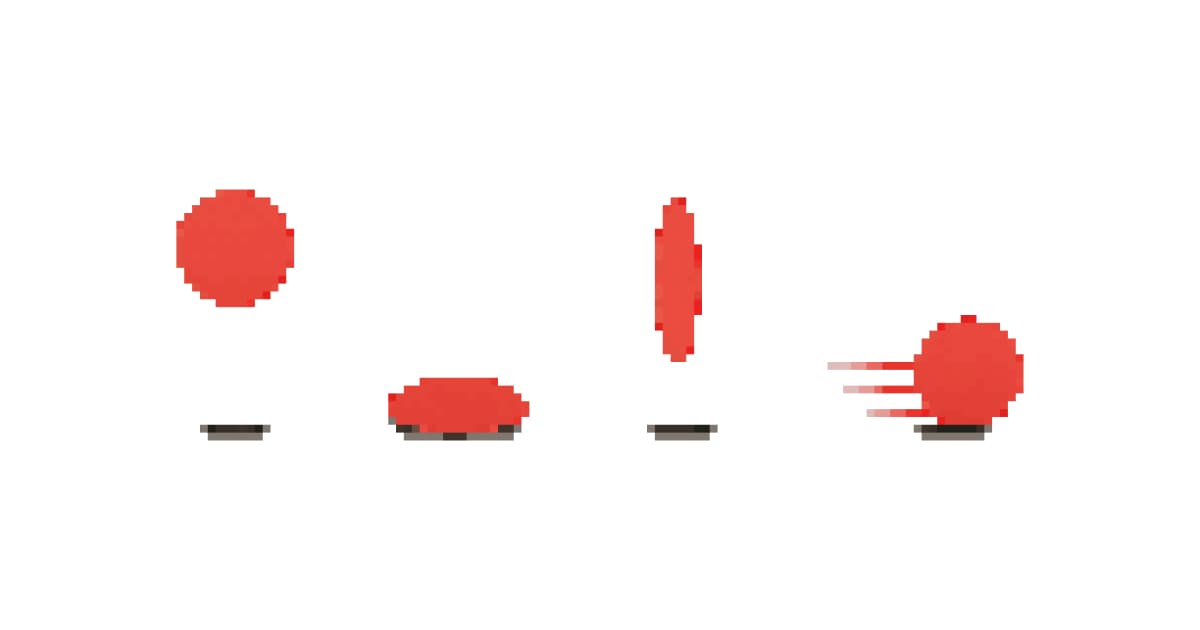
- Squash and stretch applies even at 16x16. One pixel compression before a jump, one pixel stretch at peak. Removes robotic stiffness.
- Consistent timing across all entities. If the player runs at 8 frames per cycle, NPCs should too. Write down your timing conventions.
Building your style bible
Answer these six questions before drawing your second asset:
- Resolution: Base sprite size? Characters, tiles, and items should share a grid or clean multiple (32x32 characters, 16x16 tiles, not 24x24).
- Palette: Which colors? Lock it in and import to your editor. Ready-to-use palettes here →
- Outline rules: Black outlines, colored outlines, or none? Pick one. Mixing looks terrible.
- Shading style: Flat, cel-shaded (2-3 tones), or full gradient? Dithering or not?
- Animation timing: Base frame duration. Frames per action type. Frame count table here →
- Proportions: 2-heads-tall (chibi), 3-heads, or realistic? Boss scaling?
Example style bible
Project: Forest platformer Resolution: 32x32 characters, 16x16 tiles Palette: PICO-8 (16 colors) Outlines: 1px black, all sprites Shading: 2-tone cel shading, shadows hue-shifted cool Animation: 80ms base frame, walk 6f, jump 4f, attack 5f Proportions: 2.5 heads tall, enemies same size unless boss
Twelve lines. Prevents ninety percent of the visual inconsistency that tanks indie projects.
Using AI for style consistency
Sprite AI is built specifically to solve the AI-generation consistency problem, which is the #1 reason most teams hit a wall on AI workflows.
Three techniques, in order of effectiveness:
- Palette transfer (the killer feature for this): Generate freely, then run every sprite through the palette transfer tool. Locks every sprite to your chosen palette regardless of what the AI generated. Single biggest win for style consistency in an AI workflow. It solves the dice-roll problem at the color layer entirely.
- Generate then refine: Use AI for the base sprite, then clean up in the pixel editor to match outline and proportion rules. Minutes instead of hours.
- Prompt anchoring: Include style rules in every prompt. Not "make a knight" but "32x32 pixel art knight, black 1px outline, PICO-8 palette, 2-tone cel shading." More constraints = more consistent output. Sprite AI sets resolution directly.
For animations specifically, the animator keeps style locked across all frames of a cycle: no per-frame drift, since the cycle is generated as a single coherent output.
Start building your style
Pick a resolution. Lock a palette. Define your outlines, shading, and proportions. Write it down. Twelve lines is all you need.
New to pixel art? Start with the fundamentals guide. Ready to produce assets faster? Generate sprites at sprite-ai.art and refine them to match your style bible.
Every asset in your game should look like it was made by the same person on the same day with the same rules. That's what a style guide gives you.
Start generating consistent sprites →
FAQs
What is a pixel art style guide?
A short written ruleset (~12 lines is enough) covering resolution, palette, outlines, shading, animation timing, and proportions. Write it before drawing your second asset to prevent the visual drift that tanks most indie games.
How do I keep pixel art consistent across many sprites?
Lock a palette and apply it to every sprite (manually or with palette transfer). Standardize outlines (always 1px black, or always none, never mix). Use the same animation frame counts and timing across all entities. Generate with the same prompt structure if using AI.
What resolution should I pick for my pixel art game?
32×32 is the sweet spot for most indie games: readable faces, manageable production cost, hits the "classic" 16-bit aesthetic. Go 16×16 for game jams and minimalism, 64×64 only with a dedicated art budget.
Can AI sprite generators maintain consistent style?
With the right workflow, yes. Use a tool with palette transfer (locks every sprite to your palette regardless of generation drift) and an animator (keeps style coherent across animation frames). Sprite AI is built around this. Most other AI art tools force you to fix consistency manually.
What's the difference between 8-bit, 16-bit, and modern pixel art styles?
8-bit: 8×8-16×16 sprites, 4-16 colors, hard edges, no anti-aliasing (Shovel Knight, Celeste Classic). 16-bit: 16×16-32×32, 16-32 colors, basic anti-aliasing, dithering (Stardew Valley, Katana ZERO). Modern HD: 32×32-128×128, rich palettes, sub-pixel animation (Hyper Light Drifter, Dead Cells). Production cost scales roughly 4× with each step up.
Related posts
 Guide
GuideHow AI sprite generators really work
How AI sprite generators actually work, which tools are worth using, and the prompts that produce usable game-ready pixel art.
 Guide
GuideThe 12 animation principles adapted for pixel art sprites
How Disney's 12 animation principles apply to sprite animation and pixel art. Practical breakdowns with frame counts, game references, and real examples.
 Guide
GuideHow to animate pixel art: walk cycles, idles, attacks
Pixel art animation step-by-step. Walk cycles, idle loops, attack sequences: what to draw, how many frames, what to skip.